

When a printer stops printing, goes offline, refuses to connect, or produces poor-quality pages, getting help from a Printer repair technician online can be a convenient way to identify the problem. Remote assistance can often help with printer setup, drivers, Wi-Fi connections, print queues, and software settings without requiring an immediate visit. However, some mechanical or electrical problems need hands-on inspection. This guide explains how to troubleshoot common printer problems and when online technical assistance may be useful.
Quick Answer
A Printer repair technician online can help diagnose many printer problems remotely, especially connection failures, driver issues, installation problems, offline status, print queues, and incorrect settings. Start by checking power, paper, ink or toner, cables, network connections, and printer status. If software troubleshooting does not solve the issue, the technician can help determine whether the printer needs physical repair. Exact instructions vary by printer brand, model, and operating system.
What Does This Mean?
Online printer repair generally means receiving technical guidance through a computer, phone, chat, or remote-support session rather than immediately taking the printer to a repair shop.
Not every printer problem requires a technician to physically handle the machine. Many issues occur because the printer and computer are not communicating correctly.
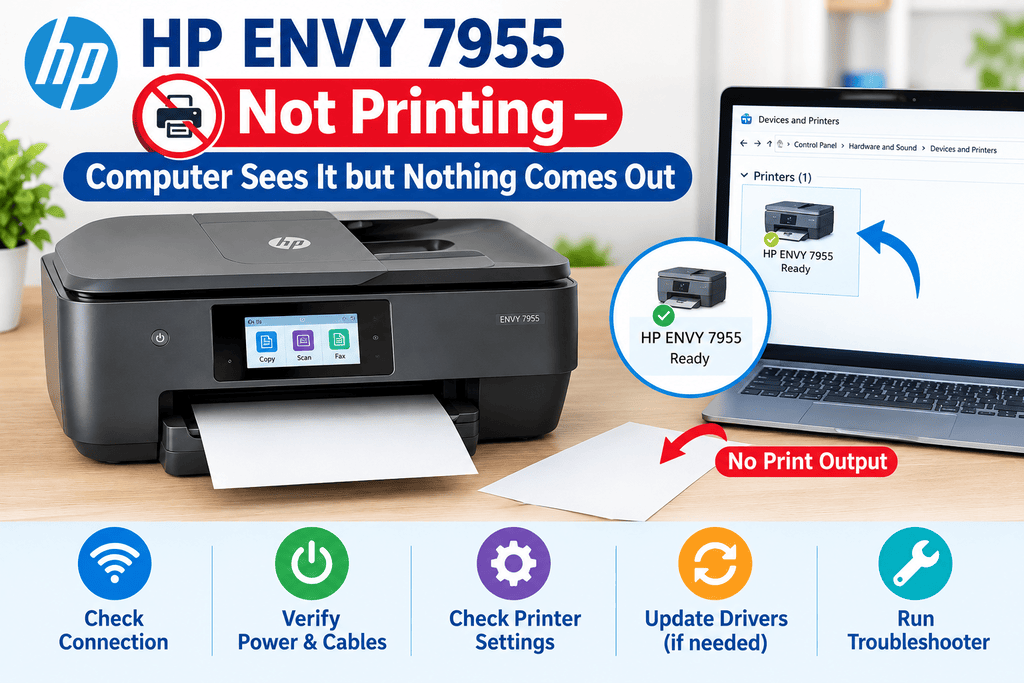
For example, a printer may appear connected to Wi-Fi but still be unavailable to the computer. A damaged or incompatible printer driver can also prevent printing even when the hardware itself is functioning.
Online technical support can be particularly useful for problems involving:
- Printer installation
- Driver installation or updates
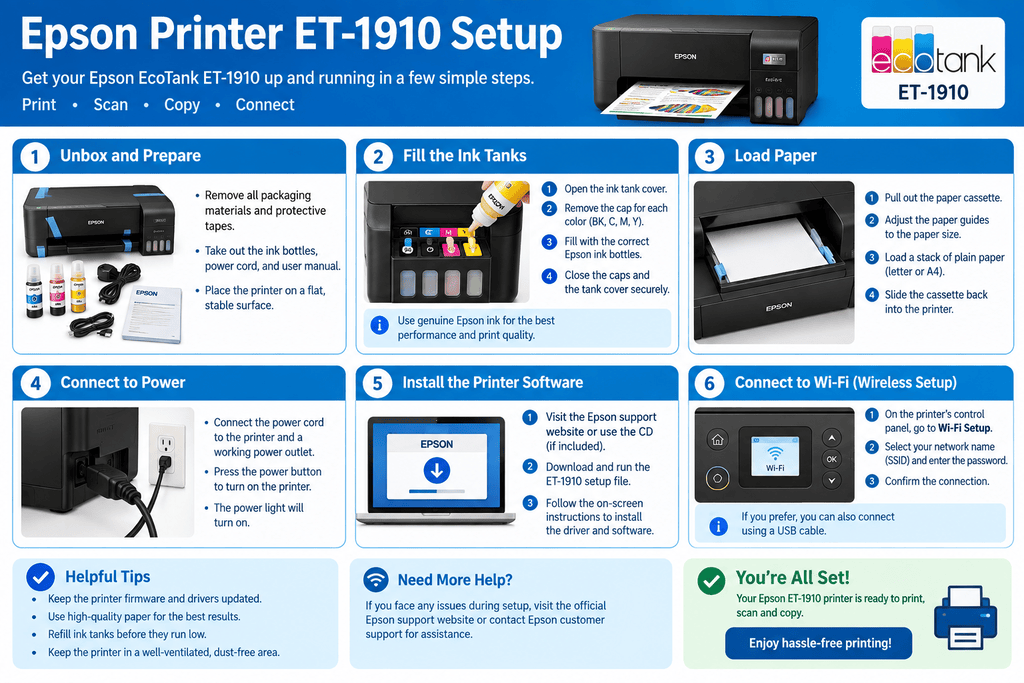
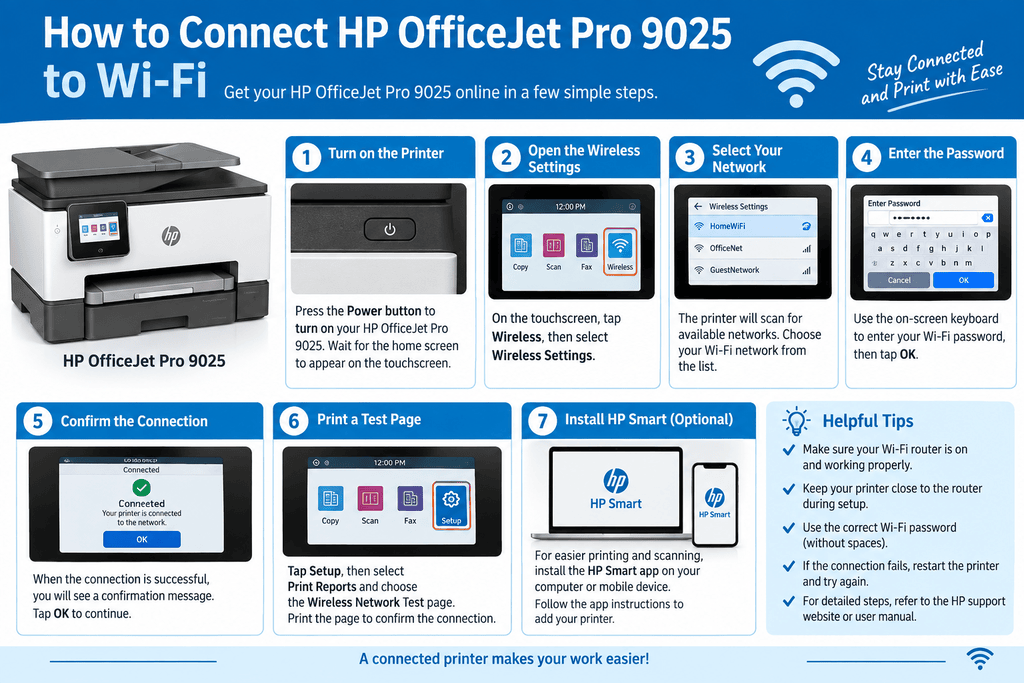
- Wi-Fi printer setup
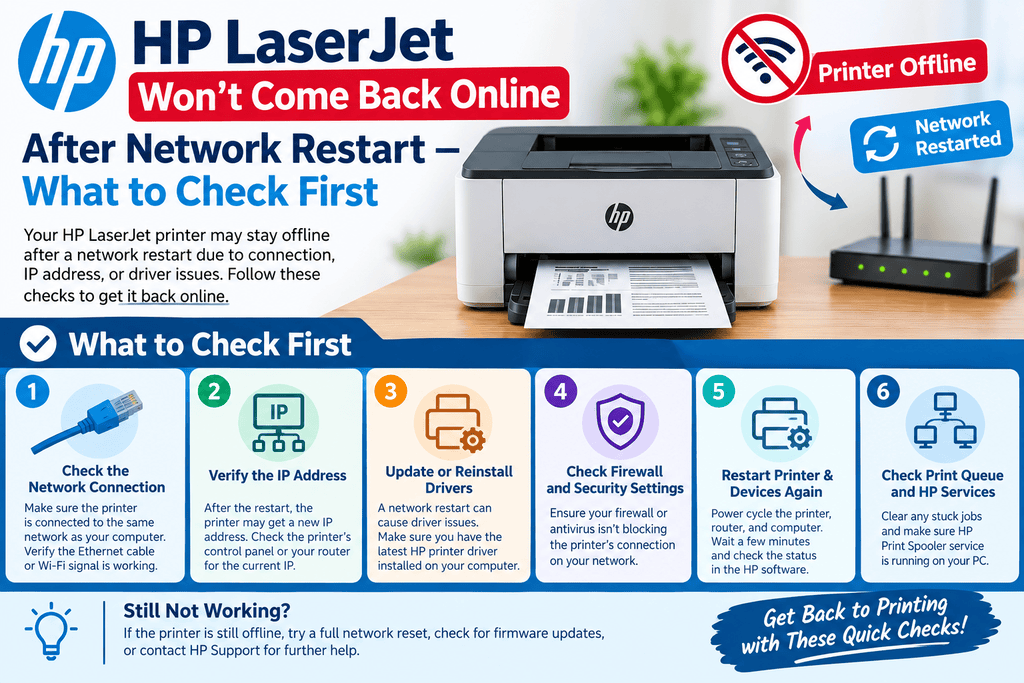
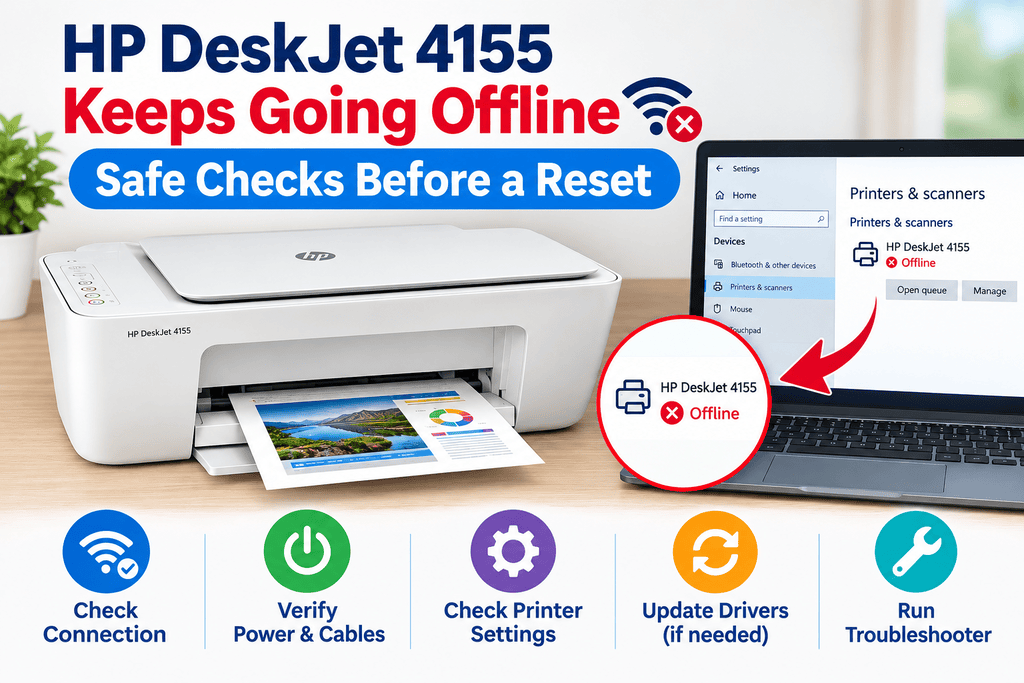
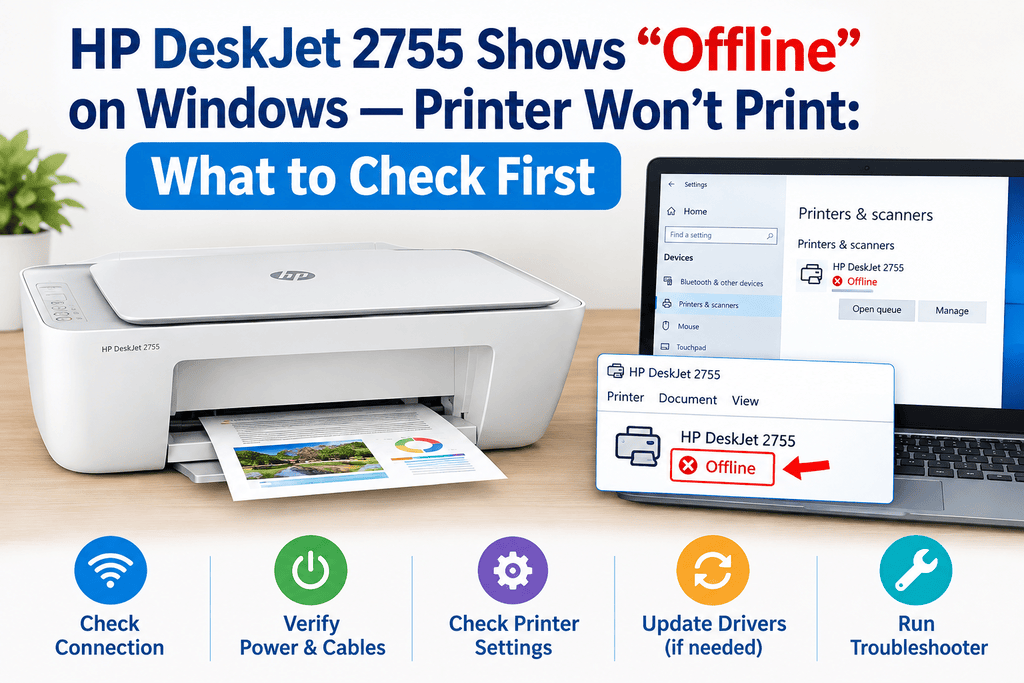
- Printer offline status
- Print queue problems
- Computer-to-printer communication
- Mobile printing configuration
- Basic print-quality troubleshooting
- Printer software settings
Hardware faults are different. Broken rollers, damaged power components, persistent mechanical jams, and some internal printer failures may require physical inspection.
Common Causes
Several problems can cause a printer to stop working correctly.
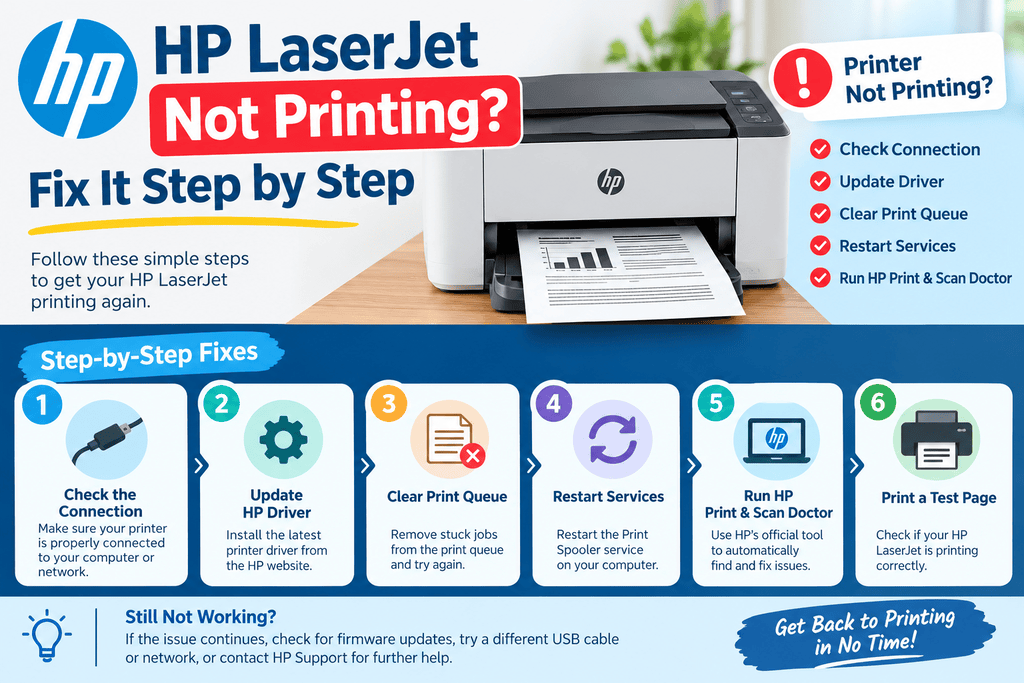
- Connection problems: USB cables, Wi-Fi settings, or network communication may fail.
- Driver problems: A missing, outdated, or incompatible driver can prevent communication.
- Offline status: The operating system may incorrectly mark the printer as unavailable.
- Print queue problems: A stuck document can prevent subsequent jobs from printing.
- Paper issues: Incorrectly loaded, unsuitable, or jammed paper can interrupt printing.
- Ink or toner issues: Low or incorrectly installed consumables can affect output.
- Incorrect settings: The wrong printer, paper size, or print mode may be selected.
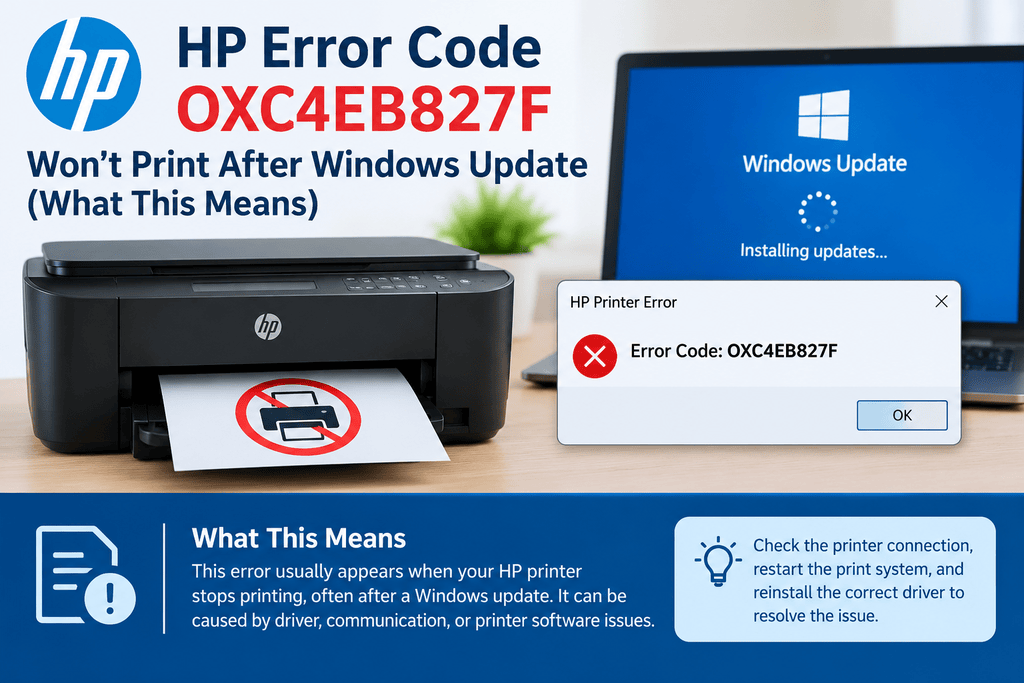
- Software changes: Operating-system or application updates can sometimes affect printer communication.
- Hardware problems: Feed rollers, printheads, sensors, and other components can develop faults.
Symptoms vs. Possible Causes
| Printer Symptom | Possible Causes |
|---|---|
| Printer does not appear on computer | Driver, USB, Wi-Fi, or network issue |
| Printer shows offline | Connection, queue, or operating-system setting |
| Documents remain in queue | Stuck print job or spooler problem |
| Printer produces blank pages | Cartridge, printhead, or print-setting issue |
| Pages have streaks or faded areas | Low consumables, clogged nozzles, or print-quality settings |
| Paper jams repeatedly | Paper condition, loading problem, obstruction, or worn mechanism |
| Printer cannot connect to Wi-Fi | Network configuration or wireless connection problem |
| Printer prints the wrong document | Queue or application selection issue |
Step-by-Step Solutions
1. Check the Printer’s Power
Make sure the printer is switched on and connected securely to a suitable power source.
If the printer has become unresponsive, follow the manufacturer’s recommended restart procedure. A normal restart can clear temporary errors and communication problems.
If there is visible electrical damage, burning smell, or another safety concern, do not continue troubleshooting the hardware yourself.
2. Check Paper, Ink, and Toner
Look at the printer’s display or companion software for warnings.
Make sure:
- Paper is loaded correctly.
- The tray is not overloaded.
- The correct paper size is selected.
- Cartridges are properly installed.
- Toner or ink is not depleted.
The exact cartridge or maintenance procedure varies by printer model.
3. Check the Connection
For a USB printer, disconnect and reconnect the cable securely. If appropriate, test another compatible USB port.
For a wireless printer, verify that the printer is connected to the intended network. If the router, Wi-Fi password, or network name recently changed, the printer may need to be configured again.
4. Restart the Printer and Computer
Turn the printer off normally and restart it. Then restart the computer or mobile device used for printing.
This can resolve temporary communication problems and refresh the connection between the operating system and printer.
5. Check the Selected Printer
Your computer may have several printers installed.
Open the operating system’s printer settings and confirm that the correct device is selected. If an old printer is set as the default, documents may be sent to the wrong queue.
This is a common reason a user may think a printer is not working when the actual problem is printer selection.
6. Clear Stuck Print Jobs
Open the printer queue and review pending documents.
Cancel jobs that are no longer needed and try sending a small test document. If one damaged or incomplete job is blocking the queue, clearing it can restore normal printing.
The exact steps for managing a print queue depend on the operating system.
7. Check the Printer Driver
A printer driver acts as a communication layer between the operating system and printer.
If the printer stopped working after a computer update or software change, check the printer manufacturer’s support resources for the appropriate driver for your exact model.
Avoid downloading drivers from unknown third-party websites because incorrect software can cause additional compatibility problems.
8. Review Print Settings
Check the following before assuming the printer has a hardware fault:
- Selected printer
- Paper size
- Paper type
- Color or grayscale mode
- Print quality
- Duplex settings
- Page range
Try printing a basic one-page document. If that works, the original document or application may be responsible for the problem.
9. Use Built-In Maintenance Features
Many printers provide maintenance options such as nozzle checks, printhead alignment, or cleaning functions.
Use these features only as recommended for your model. For example, repeatedly running an inkjet cleaning cycle can consume additional ink.
Laser printers may have different maintenance procedures, so do not apply inkjet cleaning instructions to a laser model.
10. Decide Whether Online Support Is Enough
At this stage, a Printer repair technician online may be able to help identify whether the remaining issue is software-related or hardware-related.
Remote troubleshooting is particularly suitable when the printer:
- Is detected but will not print
- Has driver problems
- Cannot be installed
- Shows offline status
- Has Wi-Fi configuration problems
- Has stuck print jobs
- Has incorrect software settings
A physical repair may be necessary when there is mechanical damage, repeated internal paper jams, damaged components, or a failure that cannot be diagnosed safely through remote assistance.
Solution vs. Difficulty vs. Estimated Time
| Solution | Difficulty | Estimated Time |
|---|---|---|
| Check power and cables | Easy | 2–5 minutes |
| Check paper and cartridges | Easy | 3–5 minutes |
| Restart devices | Easy | 5 minutes |
| Check printer selection | Easy | 2–5 minutes |
| Clear print queue | Easy–Moderate | 5–10 minutes |
| Check Wi-Fi connection | Moderate | 5–15 minutes |
| Update or reinstall driver | Moderate | 10–20 minutes |
| Run maintenance tools | Moderate | 5–15 minutes |
| Diagnose hardware fault | Advanced | Varies |
Estimated times are general and depend on the printer model, operating system, and nature of the problem.
Tips to Prevent the Problem
Regular maintenance can reduce avoidable printer problems.
- Keep the printer in a clean, dry location.
- Use paper that meets the printer manufacturer’s specifications.
- Do not overload the paper tray.
- Replace ink or toner according to the printer’s instructions.
- Keep printer drivers and software appropriately updated.
- Avoid interrupting a print job by suddenly disconnecting power.
- Remove unnecessary documents from the print queue.
- Keep wireless printer settings updated after major network changes.
- Follow the manufacturer’s instructions for cleaning and maintenance.
- Keep the printer model and operating-system information available when seeking technical help.
It is also useful to record the exact symptoms before contacting support. For example, note whether the printer is detected, whether it displays a message, and whether the problem affects every device or only one computer.
Frequently Asked Questions
1. What can a Printer repair technician online fix?
Online technicians can often assist with printer setup, driver problems, Wi-Fi configuration, offline status, print queues, software settings, and communication problems. Physical hardware damage may require an in-person repair.
2. Can a printer be repaired remotely?
Some printer problems can be resolved remotely when the cause is software, configuration, or connectivity related. A technician cannot physically replace a damaged component through a remote session.
3. Why does my printer say offline when it is turned on?
The printer may have lost its network connection, have a stuck queue, be connected to another network, or be incorrectly configured in the operating system.
4. Can an online technician help with printer Wi-Fi setup?
Yes. Remote guidance can help with many Wi-Fi configuration steps. However, the available menus and connection process vary by printer model.
5. Do I need a new printer if it stops printing?
Not necessarily. A printer that stops printing may have a connection, driver, queue, paper, consumable, or configuration problem. Troubleshooting should be performed before assuming replacement is necessary.
6. Why does my printer work from one computer but not another?
The second computer may have a different driver, printer configuration, network connection, or application setting. Comparing the configurations can help identify the difference.
7. Should I download a printer driver from a random website?
It is safer to obtain printer software from the printer manufacturer’s official support resources. The correct driver depends on the exact model and operating system.
8. Can online support fix poor print quality?
Remote guidance may help identify problems involving print settings, consumables, alignment, or maintenance functions. Persistent mechanical or printhead problems may require physical service.
9. Why does my printer keep getting paper jams?
Possible causes include unsuitable paper, incorrect loading, obstructions, or worn feed components. If the problem continues after basic checks, the printer may require inspection.
10. Do printer repair instructions work for every model?
No. Printer designs, menus, drivers, maintenance features, and reset procedures vary. Always verify instructions for the exact model.
Final Thoughts
A Printer repair technician online can be useful when a printer problem involves installation, drivers, connectivity, print queues, software settings, or wireless configuration. Before seeking assistance, check the printer’s power, paper, ink or toner, connection, selected device, queue, and driver.
If basic troubleshooting does not resolve the issue, online technical support can help narrow down the cause and determine whether the problem is software-related or requires physical repair. For damaged components, persistent mechanical faults, or electrical problems, follow the manufacturer’s safety guidance and consider qualified hands-on service.


Leave a Reply