
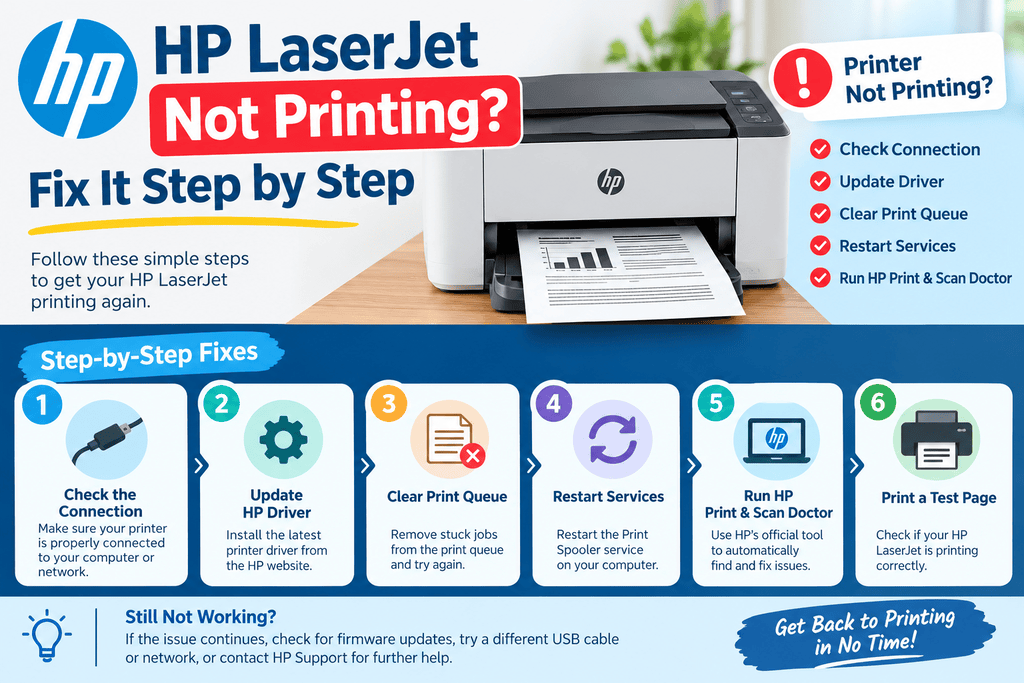
If your HP LaserJet not printing — still not working after checking paper and toner, the problem is usually somewhere beyond the basic supplies. A printer can have enough paper and toner but still fail because of a stuck print queue, connection problem, incorrect printer selection, offline status, driver issue, or a hardware fault.
The good news is that many of these problems can be checked without replacing parts. Work through the steps below in order, starting with the simplest causes.
Quick Answer
If your HP LaserJet has paper and toner but still will not print, check whether the printer is showing an error or offline status, then clear the computer’s print queue and restart both the printer and computer. Verify the correct printer is selected and connected through USB or Wi-Fi. If other devices also cannot print, investigate the network or printer itself. If the printer can print a configuration or self-test page but not documents from your computer, the problem is more likely related to the driver, print queue, or application.
What Does This Mean?
When an HP LaserJet refuses to print despite having paper and toner, the supplies are only one part of the printing process.
Your computer sends a print job to the operating system’s print queue. The queue passes that job through a printer driver and connection, such as USB or Wi-Fi. The printer then receives the data and processes it.
A failure at any point can prevent printing.
For example, the printer may appear connected while the computer is actually sending documents to another printer. Likewise, a document can remain stuck in the queue and prevent newer jobs from processing.
Instructions can vary by HP LaserJet model and operating system, so menu names and reset procedures may differ.
Common Causes
The most frequent causes include:
- Printer is offline or paused.
- A document is stuck in the print queue.
- The wrong HP printer is selected.
- Wi-Fi or USB communication has failed.
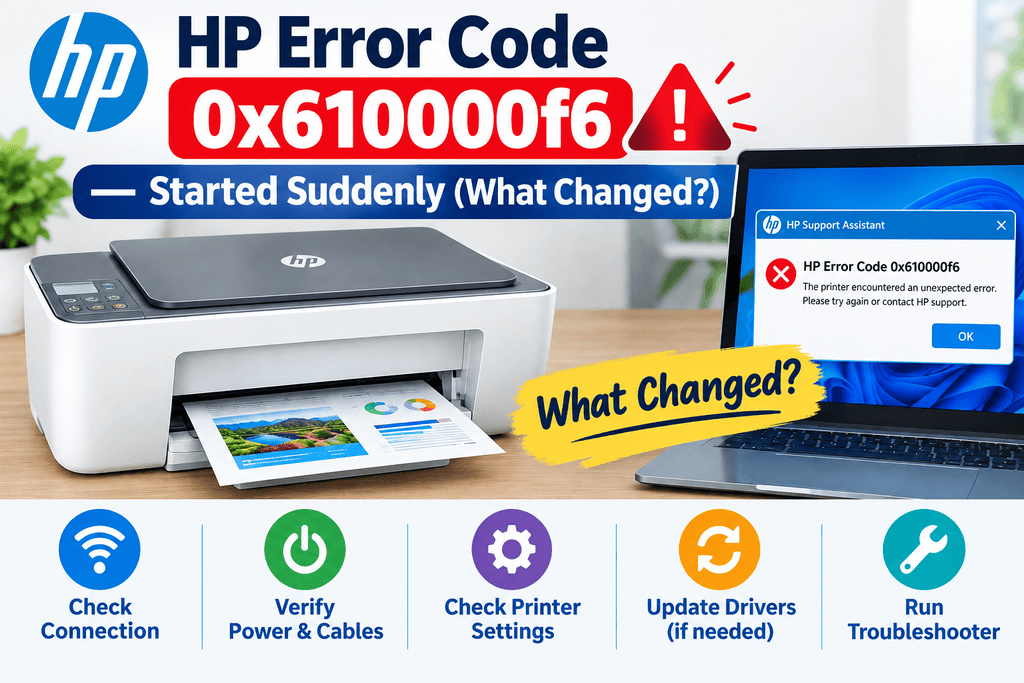
- The printer has an unresolved error shown on its display.
- The printer driver is damaged, outdated, or incorrect.
- The application being used has a temporary printing problem.
- The printer is connected to a different Wi-Fi network.
- A network printer has changed its IP address.
- The printer itself has a mechanical or electronic fault.
Symptoms vs. Possible Causes
| Symptom | Possible cause |
|---|---|
| Nothing happens after clicking Print | Wrong printer, offline status, or stuck queue |
| Jobs remain in queue | Print spooler or driver problem |
| Printer says Offline | Connection or printer-status problem |
| Computer cannot find printer | USB, Wi-Fi, network, or driver issue |
| Test page prints but documents do not | Computer, application, queue, or driver issue |
| Printer displays an error | Model-specific printer fault or condition |
| Printing stopped after changing routers | Network configuration issue |
| Only one application cannot print | Application-specific problem |
Step-by-Step Solutions
1. Check the printer’s display and physical status
Look at the printer control panel before changing computer settings.
Check for:
- Error messages
- Paused or offline status
- Open doors or covers
- Paper jams
- Attention or warning indicators
- Network connection warnings
Even if the paper tray and toner look fine, the printer may be waiting for another condition to be resolved.
Why it helps: The printer may already be reporting the reason printer settings, select the HP LaserJet, and view the print queue. Cancel pending documents and try printing a small it cannot continue.
2. Cancel stuck print jobs
A failed document can remain in the queue and block later documents.
Open your computer’s printer settings, select the HP LaserJet, and view the print queue. Cancel pending documents and try printing a small test document again.
If a job refuses to disappear, restarting the computer and printer can clear temporary queue problems. The exact procedure for clearing a print queue differs between Windows and macOS.
3. Restart the printer and computer
Turn off the printer normally and wait briefly before turning it back on. Restart the computer as well.
For a network printer, also check whether other devices can access the same network.
Why it helps: Temporary communication and print-spooler problems can survive until the affected devices are restarted.
4. Confirm you selected the correct printer
If you have previously installed several printers, Windows or macOS may be sending the document somewhere else.
Check the printer selected in the application’s Print window. Make sure it is the exact HP LaserJet you intend to use.
Also check whether another printer has been set as the default.
5. Test the connection
For a USB HP LaserJet, make sure the cable is firmly connected at both ends. If possible, try another USB port or a known-good cable.
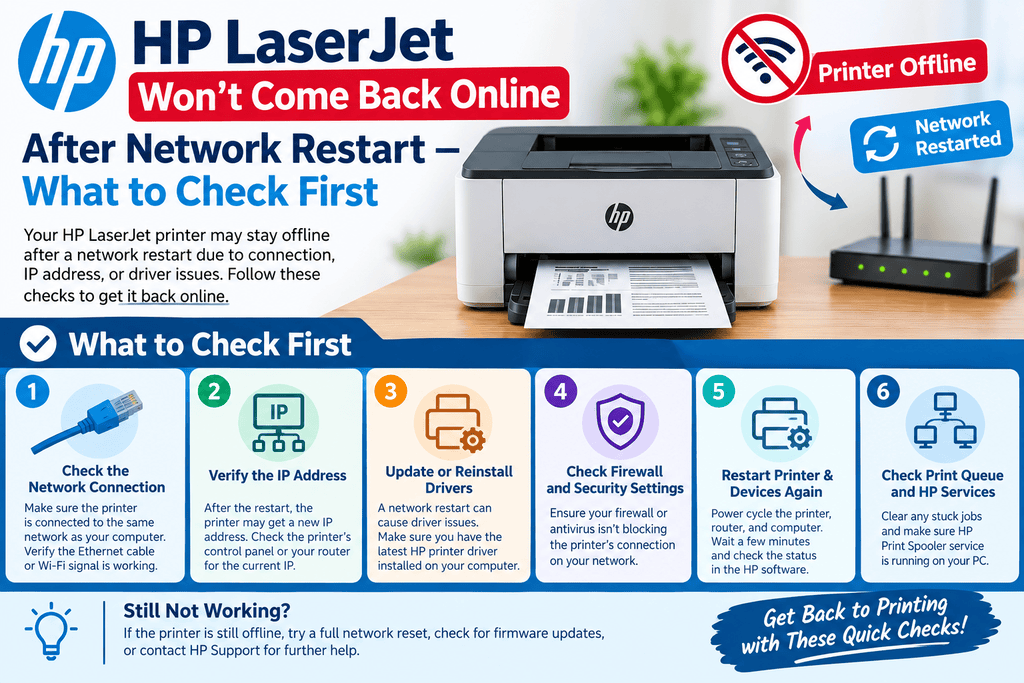
For a Wi-Fi printer, verify that the printer and computer are connected to the expected network. If the printer recently changed networks or the router was replaced, its network configuration may need to be set up again.
| Solution | Difficulty | Estimated time |
|---|---|---|
| Check printer status | Easy | 1–2 minutes |
| Clear print queue | Easy | 2–5 minutes |
| Restart devices | Easy | 3–5 minutes |
| Check selected printer | Easy | 1–2 minutes |
| Check USB/Wi-Fi connection | Easy–Moderate | 5–10 minutes |
| Test from another application | Easy | 2–5 minutes |
| Update/reinstall printer software | Moderate | 10–20 minutes |
| Check network configuration | Moderate | 10–30 minutes |
6. Print a printer-generated test or configuration page
Many HP LaserJet models provide internal reports through the control panel. The exact menu and report name vary by model.
If the printer can produce its own internal report but cannot print from your computer, that is a useful clue: the printer’s basic printing mechanism may be functioning, while the computer-to-printer communication path needs attention.
If the printer cannot produce an available internal report either, focus on the printer’s displayed error, hardware condition, or model-specific troubleshooting instructions.
7. Try another application or device
Print a simple document from another application.
For example, if a PDF will not print, try a basic text document. If one computer cannot print but another computer can, the problem is likely specific to the original computer’s settings, driver, or connection.
This test helps separate printer problems from computer problems.
8. Check the printer driver
A printer driver allows the operating system to communicate correctly with the printer.
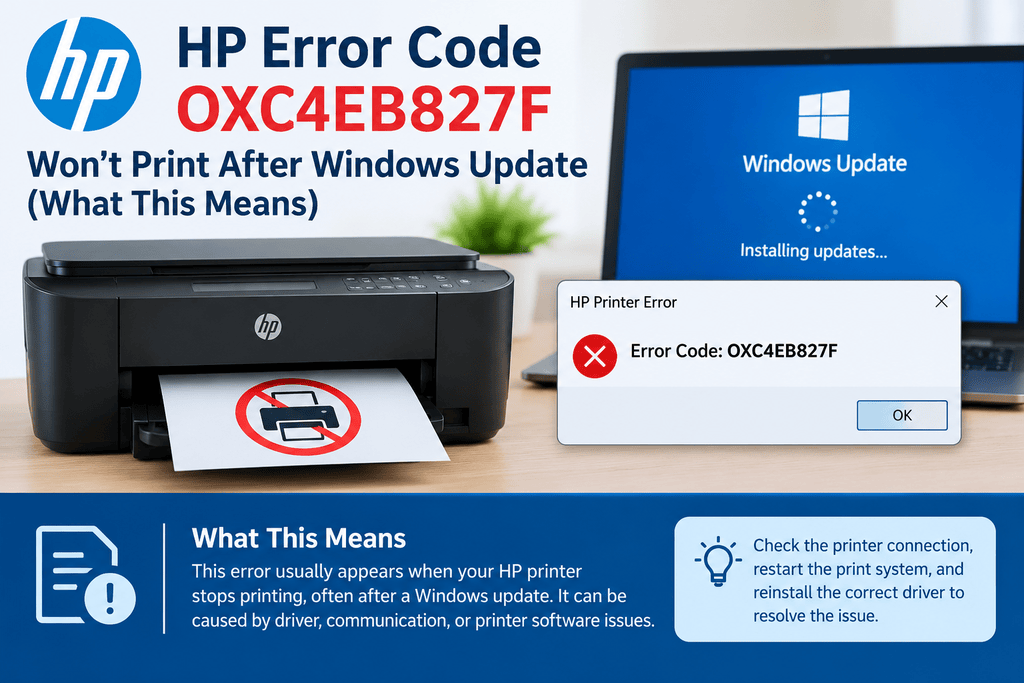
If printing stopped after an operating-system update, printer replacement, or software change, check whether the correct driver or HP printer software is installed for your specific LaserJet model.
Avoid installing a driver intended for a different model just because the printer names look similar.
9. Check network printing issues
For network-connected LaserJet printers, a printer can remain physically powered on while becoming unreachable from the computer.
This can happen after:
- Router replacement
- Wi-Fi password changes
- Network configuration changes
- Moving the printer to another network
- Changes to network printer settings
If the printer works through USB but not over Wi-Fi, concentrate on the network connection rather than toner or paper.
10. Consider a hardware problem
If the printer cannot print its own available reports, repeatedly shows an error, makes unusual mechanical noises, or fails independently of the computer and connection, the issue may be hardware-related.
At this point, use the troubleshooting documentation for your specific LaserJet model rather than repeatedly reinstalling software.
Tips to Prevent the Problem
A few simple habits can reduce recurring printing problems:
- Keep the printer firmware and computer software appropriately updated.
- Avoid repeatedly switching a network printer between different Wi-Fi networks.
- Remove obsolete duplicate printer installations from your computer.
- Keep the printer connected to a stable power source.
- Clear failed print jobs instead of repeatedly sending the same document.
- Use the correct paper type and size settings.
- Keep USB cables and network equipment in good condition.
- Record the exact printer model when troubleshooting or installing drivers.
Frequently Asked Questions
Why is my HP LaserJet not printing even though it has toner?
Toner is only one requirement. A stuck queue, offline status, connection problem, incorrect printer selection, driver issue, or printer error can also prevent printing.
Why does my HP LaserJet say Offline?
An offline status can result from communication problems, an unavailable network connection, a USB issue, or printer-status settings on the computer. Check the printer’s connection and restart both devices.
Why are my print jobs stuck in the queue?
A failed job or print-spooler problem can prevent the queue from processing. Cancel pending jobs, restart the relevant devices, and try a new test document.
Why does my HP printer print a test page but not my document?
This often points toward the computer, application, print queue, or driver rather than the printer’s basic printing mechanism. Try another application and verify the selected printer.
Why did my LaserJet stop printing after changing my Wi-Fi router?
The printer may still have the old network configuration. Check whether it is connected to the new network and whether your computer can communicate with it.
Should I reinstall my HP printer driver?
Reinstallation can help when the driver is damaged or incorrectly configured, but it should not be the first step for every printing problem. Check the connection and print queue first.
Why can one computer print but another cannot?
If another computer successfully prints to the same printer, the printer itself is less likely to be the source of the problem. Compare the affected computer’s printer selection, driver, and connection settings.
Can a USB cable cause an HP LaserJet not to print?
Yes. A damaged or poorly connected USB cable can prevent the computer from communicating with the printer. Checking the connections or testing with a known-good cable can help isolate the problem.
Why does the printer have paper but still report a paper problem?
The issue may involve paper size settings, tray configuration, a sensor condition, or a remaining obstruction. The exact cause depends on the LaserJet model and the message displayed.
When should I stop troubleshooting?
HP LaserJet Not Printing, If the printer continues to fail after connection, queue, software, and basic printer checks—or shows a persistent hardware-related error—consult the documentation for the exact model or seek qualified printer service.
Final Thoughts
When an HP LaserJet not printing — still not working after checking paper and toner, the next step is not necessarily to replace the toner or paper. Check the printer’s status, clear the print queue, restart the devices, confirm the selected printer, and test the connection.


Leave a Reply