
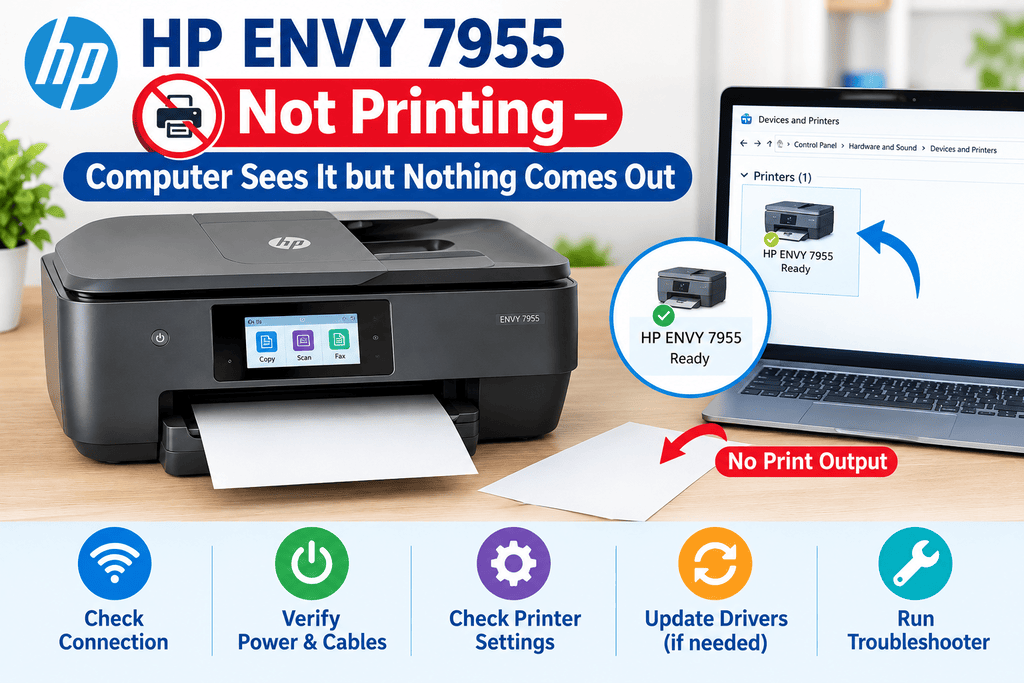
If your HP ENVY 7955 not printing — computer sees it but nothing comes out, the printer is usually communicating with the computer but the print job is not completing. The cause can be as simple as a paused print queue, the wrong printer selected, a connection problem, or an issue with ink or the print system.
The best approach is to check the simple causes first rather than immediately reinstalling everything.
Quick Answer
When an HP ENVY 7955 is detected by your computer but produces no page, first check the printer’s display for warnings, confirm it is ready and online, and make sure the correct printer is selected. Then clear stuck print jobs, restart both the printer and computer, and print a test or diagnostic page. If the printer feeds paper but produces a blank page, check ink levels and printhead/nozzle condition. If jobs remain stuck in the queue, troubleshoot the Windows or macOS print system and reinstall the printer only if necessary.
What Does This Mean?
Seeing the HP ENVY 7955 listed on your computer only confirms that the operating system can identify the printer. It does not necessarily mean that a print job is reaching the printer correctly or that the printer can successfully produce a page.
There are several stages between clicking Print and getting a sheet of paper:
- The application creates the print job.
- Windows or macOS sends the job to the selected printer.
- The printer receives and processes the job.
- Paper and ink are used to produce the document.
A failure at any of these stages can make the printer appear connected while nothing is printed.
Symptoms and possible causes
| Symptom | Possible causes |
|---|---|
| Print job stays in the queue | Stuck queue, print service problem, connection issue |
| Job disappears but no page prints | Wrong printer, driver/software problem, communication failure |
| Printer feeds a blank sheet | Low ink, clogged printhead/nozzles, print settings |
| Printer says offline | Wi-Fi or USB connection problem |
| Printer shows an alert | Paper, cartridge, door, or other printer condition |
| Test page prints but documents do not | Application, driver, or document-specific issue |
Common Causes
The most common reasons an HP ENVY 7955 may not print include:
- A paused or stuck print queue
- The wrong printer selected as the default
- The printer showing as offline
- Temporary Wi-Fi or USB communication problems
- An outdated, damaged, or incorrect printer driver
- Low or empty ink
- Blocked printhead/nozzles when pages are blank
- Paper, cartridge, or printer-status warnings
- Problems with the Windows Print Spooler or macOS printing system
- A temporary software or firmware communication issue
Not every cause applies to every setup. For example, Wi-Fi troubleshooting is irrelevant if the printer is connected directly by USB.
Step-by-Step Solutions
1. Check the printer itself first
Look at the HP ENVY 7955 display and confirm that the printer appears ready.
Check for:
- Paper in the correct tray
- Properly installed cartridges
- Open doors or covers
- Any warning messages
- A paused or offline state
If the printer is reporting a physical problem, resolve that first. A computer can still detect a printer that is unable to print because of a printer-side condition.
2. Confirm you selected the correct printer
If multiple HP printers or virtual printers are installed, your document may be going somewhere else.
Open the application’s print dialog and verify that HP ENVY 7955 is selected. On Windows, also check Settings > Bluetooth & devices > Printers & scanners. On macOS, check System Settings > Printers & Scanners.
If several similar printer entries exist, confirm which one is actually connected.
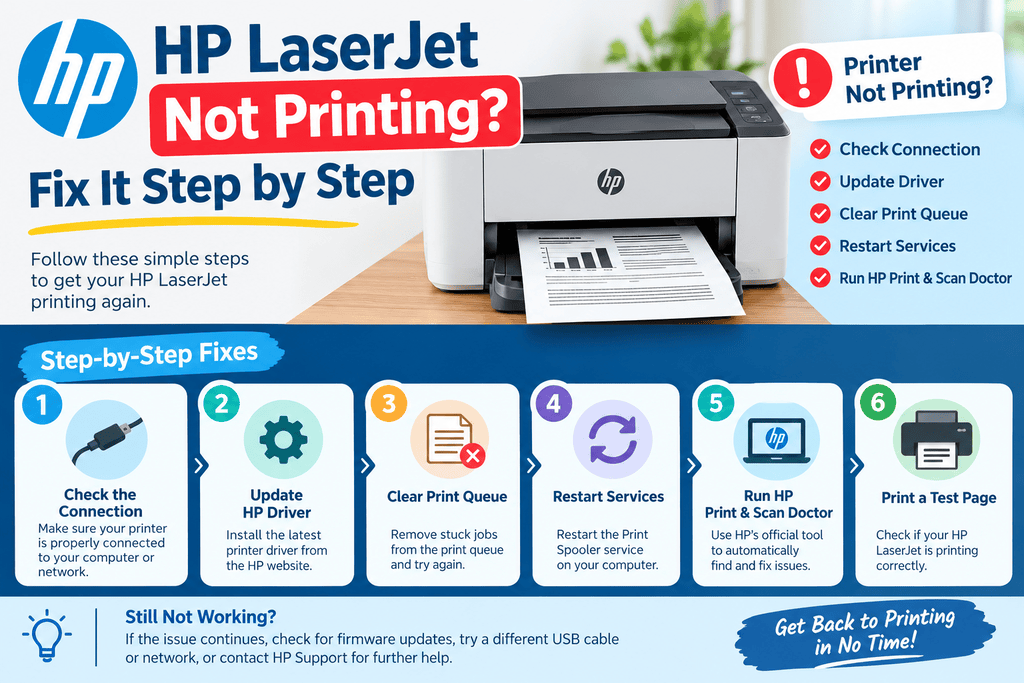
3. Clear the print queue
A single stuck document can prevent later jobs from printing.
On Windows, open the printer’s print queue and cancel pending documents. If a job refuses to disappear, restarting the Windows Print Spooler may be necessary.
On macOS, open the printer queue and cancel stalled jobs.
After clearing the queue, send a small test document rather than immediately printing a large file.
4. Restart the printer and computer
Power-cycle both devices:
- Cancel pending print jobs.
- Turn off the printer.
- Wait several seconds.
- Turn the printer back on.
- Restart the computer.
- Try printing again.
This can clear temporary communication and print-service problems. If the printer is network-connected, restarting the router may also help when other network devices are having connection problems.
5. Check the connection
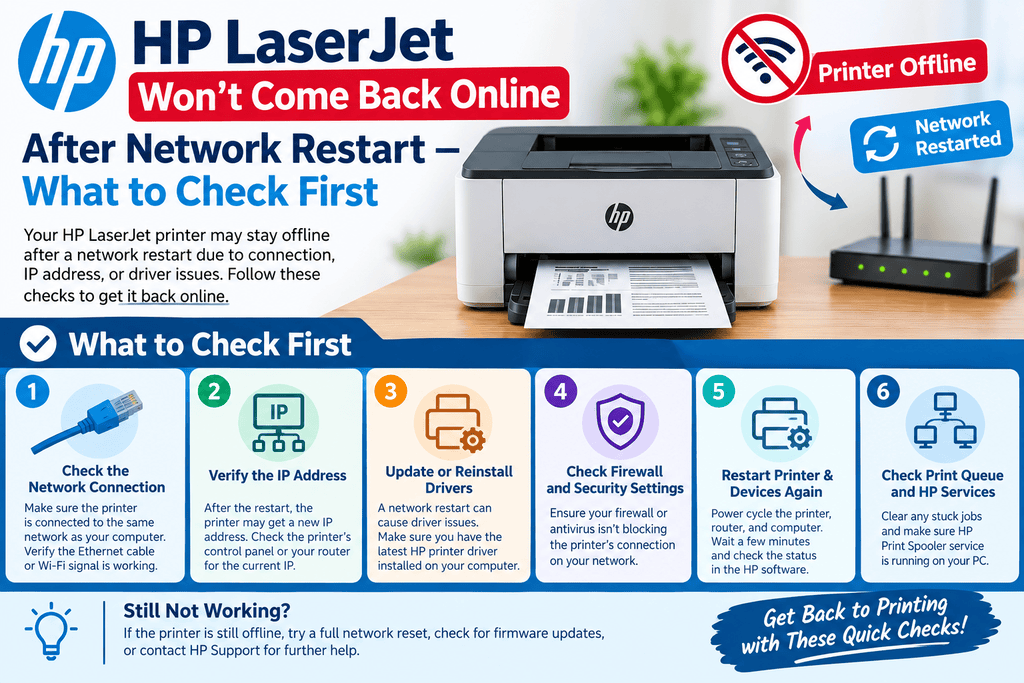
For Wi-Fi, make sure the printer is connected to the same network your computer is using. A printer can remain saved on a computer even after its network connection has changed.
For USB, check the cable and try another USB port if available. Avoid assuming that because Windows or macOS lists the printer, the current connection is working correctly.
6. Try a printer test or diagnostic page
If the printer provides a built-in report or test-page option, use it. The exact menu names can vary by printer firmware and model.
This test is useful because it separates printer hardware from computer software.
- Test page works: The printer can physically print, so investigate the computer, driver, application, or print queue.
- Test page is blank: Investigate ink, cartridges, printhead/nozzle condition, and printer maintenance.
- Test page also fails completely: Focus on the printer’s status and connection before changing computer settings.
7. Check ink and print quality
If paper comes out but is blank or extremely faint, the problem is different from a job that never reaches the printer.
Check the reported ink levels and run the printer’s available print-quality diagnostic or cleaning routine when appropriate. Excessive cleaning cycles can consume ink, so follow the printer’s maintenance guidance rather than repeatedly running them.
If only one color is missing, a cartridge or printhead/nozzle issue is more likely than a computer connection problem.
8. Remove and re-add the printer if necessary
If the printer is detected but jobs consistently fail, removing the printer from the operating system and adding it again can rebuild the printer configuration.
Before doing this, make sure you know the printer’s connection method and have any required HP software or driver available.
Driver and menu instructions can vary between Windows and macOS, and they may change between operating-system versions.
9. Test from another application
Try printing a simple page from a different application.
For example, if a web browser will not print, try a basic text document. If another application prints successfully, the original application or document may be responsible.
This is a useful test before changing printer drivers or performing more extensive troubleshooting.
Solution, difficulty, and estimated time
| Solution | Difficulty | Estimated time |
|---|---|---|
| Check printer status | Easy | 1–2 minutes |
| Confirm selected printer | Easy | 1–2 minutes |
| Clear print queue | Easy | 2–5 minutes |
| Restart printer and computer | Easy | 3–5 minutes |
| Check Wi-Fi/USB connection | Easy | 3–10 minutes |
| Run a test/diagnostic page | Easy | 2–5 minutes |
| Check ink and print quality | Easy | 3–10 minutes |
| Remove and re-add printer | Moderate | 5–15 minutes |
| Reinstall printer software/driver | Moderate | 10–20 minutes |
Tips to Prevent the Problem
A few habits can reduce recurring printing problems:
- Keep the printer connected to a stable network.
- Avoid repeatedly sending large print jobs when an earlier job is stuck.
- Remove old or duplicate printer entries you no longer use.
- Keep printer software and your operating system reasonably up to date.
- Check ink levels before starting large print jobs.
- Use the printer’s recommended paper type and size.
- Perform print-quality maintenance only when needed.
- If you frequently switch Wi-Fi networks, verify the printer’s connection afterward.
Frequently Asked Questions
Why does my HP ENVY 7955 show as connected but not print?
A connected status only means the computer can identify or communicate with the printer. A stuck queue, wrong printer selection, driver problem, or printer-side warning can still prevent printing.
Why does my print job disappear without printing?
The job may be accepted by the operating system but fail during communication with the printer. Check the printer’s status and try a built-in test or diagnostic page.
What should I check first when the HP ENVY 7955 won’t print?
Start with the printer display, paper, cartridges, connection, and selected printer. Then clear the print queue and restart both devices.
Why does my HP ENVY 7955 print blank pages?
Blank pages usually point toward an ink or print-quality problem rather than a simple connection problem. Check ink levels and use the printer’s available print-quality maintenance tools.
Should I reinstall the printer driver?
Not immediately. Clear the queue, restart the devices, check the connection, and test printing first. Reinstalling the printer can be useful when those basic checks do not resolve the problem.
Can Wi-Fi cause the printer to stop printing?
Yes. The computer may retain the printer entry even when the printer is no longer communicating properly over the network.
What if the printer works from one application but not another?
That points toward an application, document, or application-specific print setting. Try printing a simple document from another program.
Does restarting the printer really help?
It can. Restarting clears temporary states and forces the printer to establish its connection again. It is a simple step worth trying before making configuration changes.
Why is the HP ENVY 7955 offline?
Possible causes include a lost Wi-Fi connection, computer network changes, printer sleep or connection-state issues, or an operating-system printer configuration problem.
What if nothing prints after all these steps?
If the printer cannot produce its own test or diagnostic page, focus on the printer’s hardware, ink system, paper path, and displayed status. If its own test page works but computer documents do not, continue troubleshooting the computer, driver, queue, and network connection.
Final Thoughts
When dealing with HP ENVY 7955 not printing — computer sees it but nothing comes out, do not assume the printer itself has failed. Start with the basics: check the printer’s status, confirm the correct printer is selected, clear stuck jobs, restart the devices, and verify the connection.
Then use a printer test page to determine whether the problem is on the printer side or the computer side. If the printer can produce a test page but normal documents still fail, investigate the print queue, driver, application, and connection. If it cannot produce a test page, concentrate on ink, paper, printer status, and hardware-related issues.
If the problem continues after these checks, consult the current HP documentation for the ENVY 7955 and your specific Windows or macOS version, since menus and printer troubleshooting procedures can vary by software version and printer configuration.


Leave a Reply