
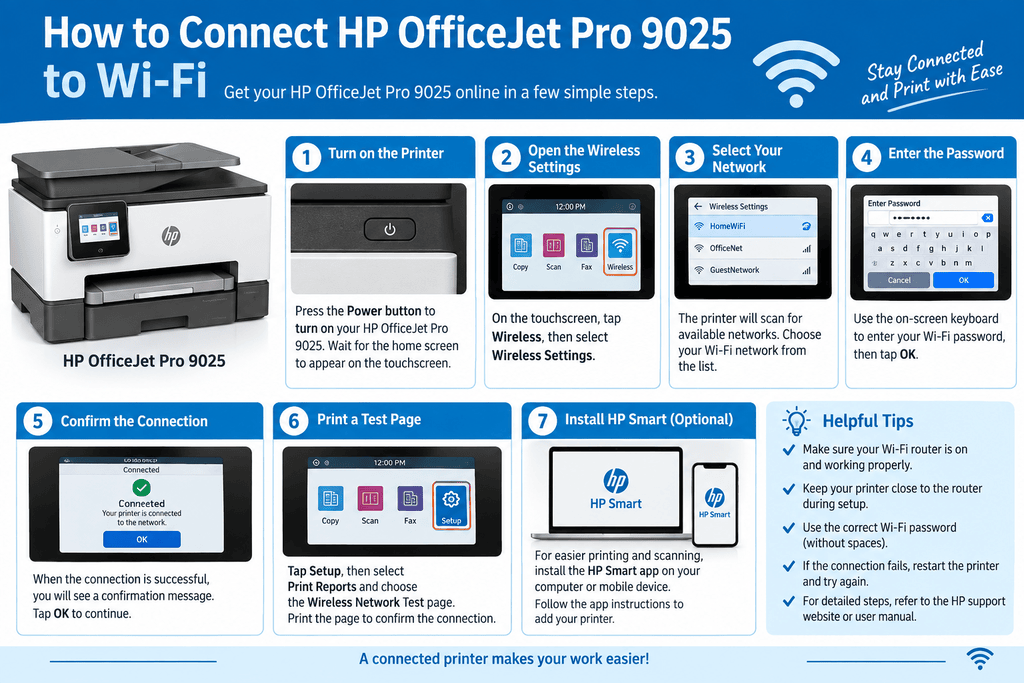
Learning how to connect HP OfficeJet Pro 9025 to Wi-Fi is usually straightforward, but network settings, router changes, or an incorrect password can prevent the printer from connecting. The HP OfficeJet Pro 9025 has a built-in touchscreen that makes wireless setup easier, whether you are connecting it for the first time or reconnecting after changing your Wi-Fi network.
This guide explains the setup process and provides practical solutions if your HP OfficeJet Pro 9025 does not connect to Wi-Fi.
Quick Answer
To connect the HP OfficeJet Pro 9025 to Wi-Fi, turn on the printer and open Wireless or Network Settings from its touchscreen. Select your Wi-Fi network, enter the wireless password, and confirm the connection. Wait for the printer to show that it is connect. If your network does not appear, restart the printer and router, move the printer closer to the router, and check that the correct Wi-Fi password is being used.
What Does This Mean?
A Wi-Fi connection allows your HP OfficeJet Pro 9025 to communicate with computers, phones, and other devices over your wireless network. Once connected, you can print without plugging a USB cable directly into the printer.
The printer and the device sending the print job generally need to be connect to the same local network. If your computer is connected to one Wi-Fi network while the printer is connected to another, printing may not work normally.
The exact menu names can vary slightly depending on the printer’s firmware or configuration, so use the options shown on your printer’s touchscreen.
Common Causes
Several issues can interfere with HP OfficeJet Pro 9025 wireless setup:
- Incorrect Wi-Fi password
- Router is too far from the printer
- Printer is connect to an old wireless network
- Router or printer temporarily needs to be restarted
- Wi-Fi is disable on the printer
- Network settings have become outdated
- Computer or phone is using a different network
- Router configuration is preventing the printer from communicating
- Printer firmware or software needs updating
Symptoms vs. Possible Causes
| Symptom | Possible Cause |
|---|---|
| Wi-Fi network does not appear | Weak signal or wireless issue |
| Password is rejected | Incorrect network password |
| Printer connects but cannot print | Device may be on another network |
| Wi-Fi worked before but stopped | Router or network settings changed |
| Printer repeatedly disconnects | Weak signal or router instability |
| Setup cannot find printer | Printer and device may be on different networks |
Step-by-Step Solutions
1. Check the Wi-Fi network first
Before changing printer settings, confirm that your home or office Wi-Fi is working.
Connect a phone or computer to the same network and open a website. If other devices cannot connect, troubleshoot the router before working on the printer.
2. Place the printer near the router
During setup, position the HP OfficeJet Pro 9025 reasonably close to the wireless router.
A weak signal can cause the network to appear intermittently or cause setup to fail. After the connection is established, you can move the printer to its normal location and check whether the connection remains stable.
3. Open the printer’s wireless settings
Turn on the printer and use its touchscreen to locate the Wireless, Network, or Setup settings.
Look for an option to configure or select a wireless network. The wording may differ depending on the printer’s software version.
4. Select your Wi-Fi network
Choose your wireless network from the available networks shown on the printer.
Make sure you select the correct network, particularly if several networks with similar names are nearby.
If your network does not appear, check the router, move the printer closer, and refresh the available network list if that option is provided.
5. Enter the Wi-Fi password carefully
Type the wireless password exactly as it appears.
Wi-Fi passwords are case-sensitive, so an uppercase letter, number, or special character entered incorrectly can prevent the connection.
If you are unsure of the password, check the router documentation or the network settings on a device that is already connected.
6. Confirm the connection
After entering the password, allow the printer a moment to connect.
A successful connection should be reflect in the printer’s wireless or network status. If the printer reports that it cannot connect, verify the password and repeat the setup.
7. Restart the printer and router
If the setup fails repeatedly, restart both devices.
Turn off the printer and restart the router. Wait for the router to finish starting and then turn the printer back on. Try the Wi-Fi setup again.
This can clear temporary communication problems without changing your network configuration.
8. Check the computer or phone
If the printer connects to Wi-Fi but you still cannot print, check the device sending the print job.
Make sure the computer, tablet, or phone is connect to the same local network as the printer. A guest network or separate wireless network can sometimes prevent devices from communicating with each other.
9. Reset network settings if necessary
If the OfficeJet Pro 9025 was previously connect to another router or Wi-Fi network, its saved network information may no longer be useful.
Use the printer’s network settings to reset or restore wireless settings, then perform the Wi-Fi setup again.
Only use a network reset when needed because it removes the printer’s existing wireless configuration.
Solution vs. Difficulty vs. Estimated Time
| Solution | Difficulty | Estimated Time |
|---|---|---|
| Check Wi-Fi password | Easy | 2–5 minutes |
| Restart printer and router | Easy | 5–10 minutes |
| Reconnect through touchscreen | Easy | 5–10 minutes |
| Move printer closer to router | Easy | 2–5 minutes |
| Check device network | Easy | 2–5 minutes |
| Reset network settings | Moderate | 5–10 minutes |
| Update printer software/firmware | Moderate | 10–20 minutes |
Tips to Prevent the Problem
Once your printer is connect, a few simple habits can reduce future connection problems:
- Keep the printer within a reliable range of the router.
- Avoid placing the printer directly beside devices that can interfere with wireless signals.
- Keep your Wi-Fi password recorded somewhere secure.
- After changing your router or Wi-Fi name, reconnect the printer.
- Make sure your computer or phone is using the same network as the printer.
- Restart network equipment when a temporary connection problem occurs.
- Keep HP printer software and firmware reasonably up to date when updates are available.
Frequently Asked Questions
1. How do I connect HP OfficeJet Pro 9025 to Wi-Fi without a USB cable?
You can configure the wireless connection directly from the printer’s touchscreen. Select your wireless network and enter its password.
2. Why can’t my HP OfficeJet Pro 9025 find my Wi-Fi?
The printer may be too far from the router, wireless networking may not be available correctly, or the network may not be broadcasting in a way the printer can detect. Restarting the router and printer can also help.
3. What should I do if I forgot my Wi-Fi password?
Check the wireless settings on a device already connected to your network or refer to your router’s documentation. Do not assume the password printed on the router is still correct if it has been changed.
4. Why does my HP printer say it is connected but won’t print?
Check whether your computer or phone is connected to the same network as the printer. Also verify that the correct printer is selected in your device’s print settings.
5. Do I need to reconnect the printer after changing my router?
Usually, yes. If the router’s Wi-Fi name or password changed, the printer may need to be configured with the new wireless credentials.
6. Can I use the HP OfficeJet Pro 9025 with a wireless network?
Yes. The printer supports wireless networking, allowing compatible devices on the network to send print jobs without a direct USB connection.
7. Why does my printer keep losing Wi-Fi?
A weak wireless signal, router instability, network changes, or interference can cause repeated disconnections. Test the printer closer to the router to help identify signal-related problems.
8. Should I reset the printer’s network settings?
A network reset can be useful when the printer retains outdated wireless information or repeatedly fails to connect. Remember that resetting network settings removes the current wireless configuration.
9. Can my phone print to the HP OfficeJet Pro 9025?
A compatible phone can generally print to the printer when both devices are connected to the appropriate network and the required mobile printing functionality is configured.
10. Why does the Wi-Fi setup work on one device but not another?
The devices may be connected to different networks, or the second device may have a printer configuration or software issue. Check the network connection and available printer settings on that device.
Final Thoughts
Knowing how to connect HP OfficeJet Pro 9025 to Wi-Fi makes wireless printing much easier. Start by checking your network, select the correct Wi-Fi connection from the printer’s touchscreen, enter the password carefully, and confirm that the printer connects successfully.
If the connection fails, work through the basics first: check the password, move the printer closer to the router, restart the network equipment, and confirm that your computer or phone is using the same network. If those steps do not resolve the issue, resetting the printer’s network settings may be the next practical step.
Because menu names and available options can change with firmware or printer configuration, instructions may vary slightly from one HP OfficeJet Pro 9025 setup to another.


Leave a Reply