IT Support For Your Home and Business
Search, IT Support and Services for both your home and business.—all in one place.
Best deals this season
Our IT support team covers printers, computers, tablets, networks with computer repair, virus removal, and on-demand Managed IT services included for both home & business.

Trust
Why Quick Fix IT with Us!
Technology problems can interrupt your work, slow down your day, and make simple tasks feel frustrating. Quick Fix IT is focused on helping home users and businesses find practical solutions to common computer, printer, software, and technical issues.
Our IT support services are designed to keep your technology running smoothly and your business moving forward. From solving everyday technical problems to providing reliable guidance, our experienced support team is ready to help when you need assistance.
We focus on quick responses, practical solutions, and clear communication to make technology easier to manage. Whether you need help with computers, software, networks, Wi-Fi, and other technical issues, our goal is to provide dependable support and reduce unnecessary downtime. Choose IT support with us for professional assistance, reliable solutions, and a smoother technology experience.
Trusted & Verified Team
All our technician experiences are carefully selected and verified to ensure quality, safety, and satisfaction.
Easy & Secure
Enjoy a smooth working process with transparent pricing and secure payment options, all in one place.



Wanna Talk To Us?
Please feel free to contact us. We’re super happy to talk to you. Feel free to ask anything.
We help with
Explore Our Best IT Services and Support
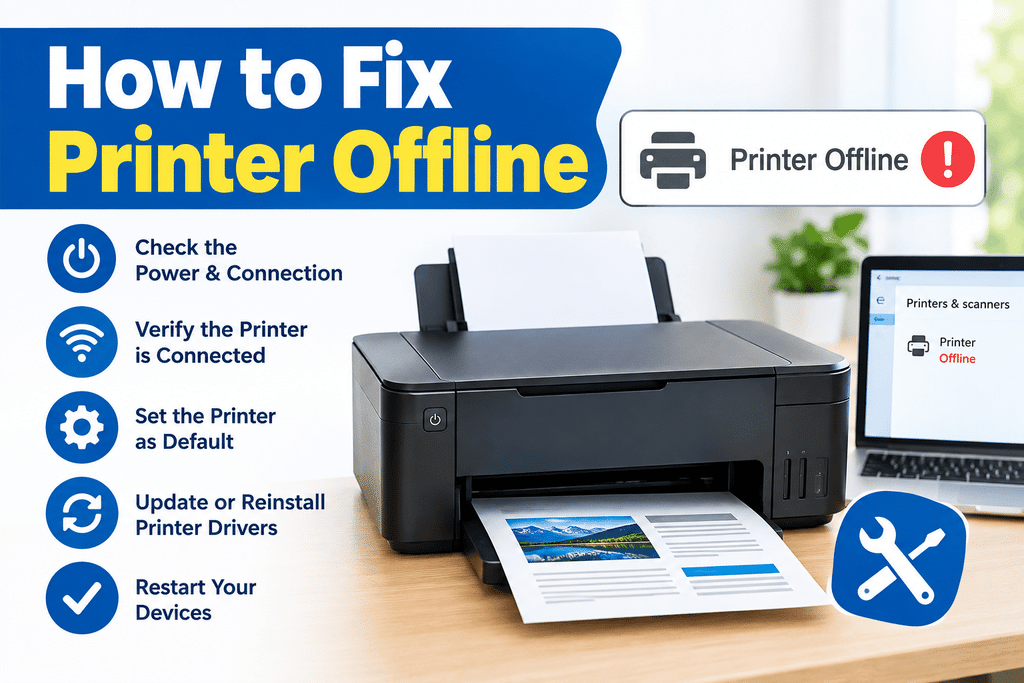
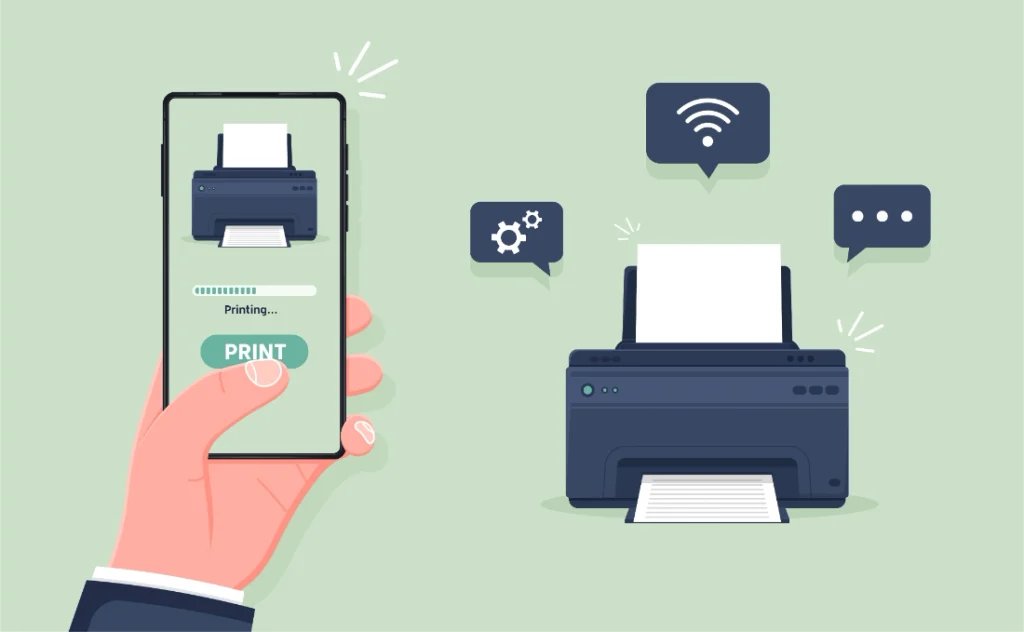
How to Fix Printer Offline!
If your printer shows as offline, start by checking that it is powered on properly connected to your computer and Wi-Fi network. Restart both the printer and computer to refresh the connection. Make sure the correct printer is selected as the default device and disable the “Use Printer Offline” option in printer settings. Check for loose USB cables and network issues if you use a wireless printer. Updating the printer driver can also resolve communication problems. If the issue continues, remove and reinstall the printer to restore a stable connection and get it working again.
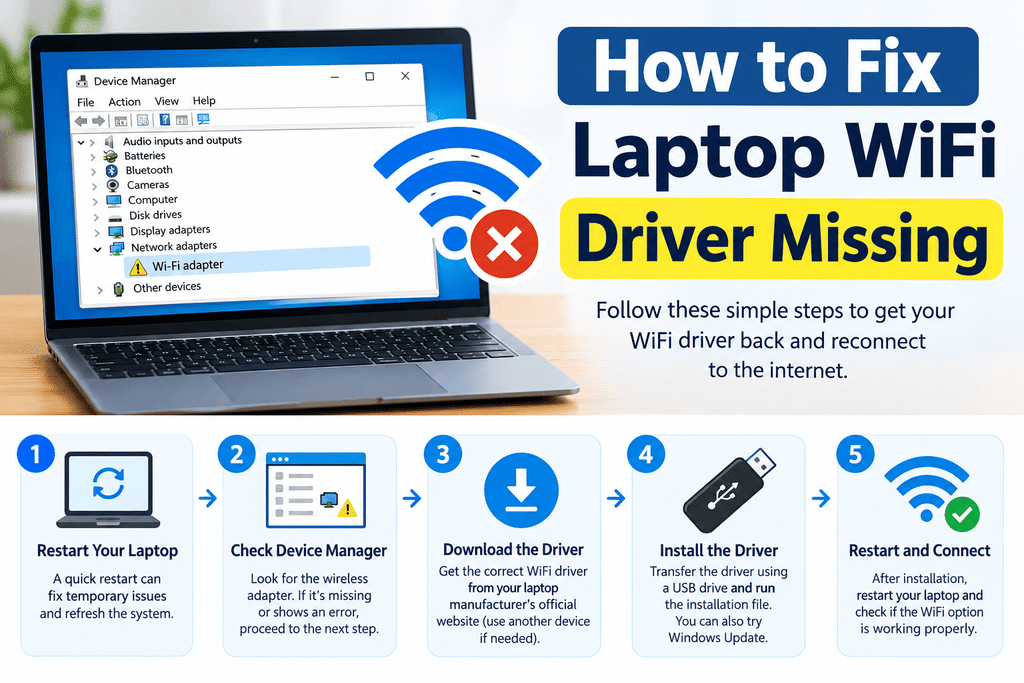
How to Fix Laptop Wi-Fi Driver Missing!
If your laptop Wi-Fi driver is missing, your computer may be unable to detect and connect to wireless networks. Start by restarting the laptop and checking Device Manager for the wireless adapter. If the driver is missing and shows an error, download the correct Wi-Fi driver from your laptop manufacturer’s official support website using another device. You can then transfer and install the driver using a USB drive. Windows Update may also automatically find a compatible driver. After installation, restart your laptop and check whether the Wi-Fi option has returned and is working properly.
Service Location
Experiences
Guide & Tips
Discover ideas, guides, and experiences to inspire your next technology.
-
HP OfficeJet 4650 Not Printing After Driver Update
If your HP OfficeJet 4650 is not printing even after a driver update, the problem may…
-
HP OfficeJet Pro 9015 Not Printing — Blank Pages or Queue Stuck
If your HP OfficeJet Pro 9015 is not printing, you may see blank pages, documents waiting…
-
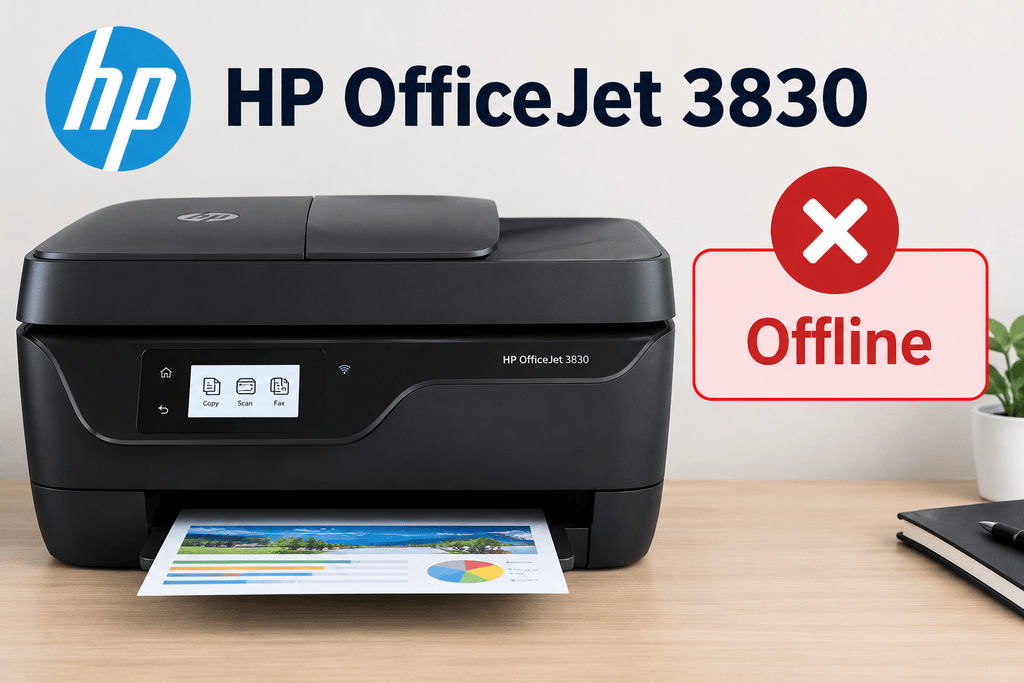
HP OfficeJet 3830 Offline — Printer Won’t Connect to Network or Shows Unavailable (What to Check First)
When your HP OfficeJet 3830 offline — printer won’t connect to network or shows unavailable (what…