
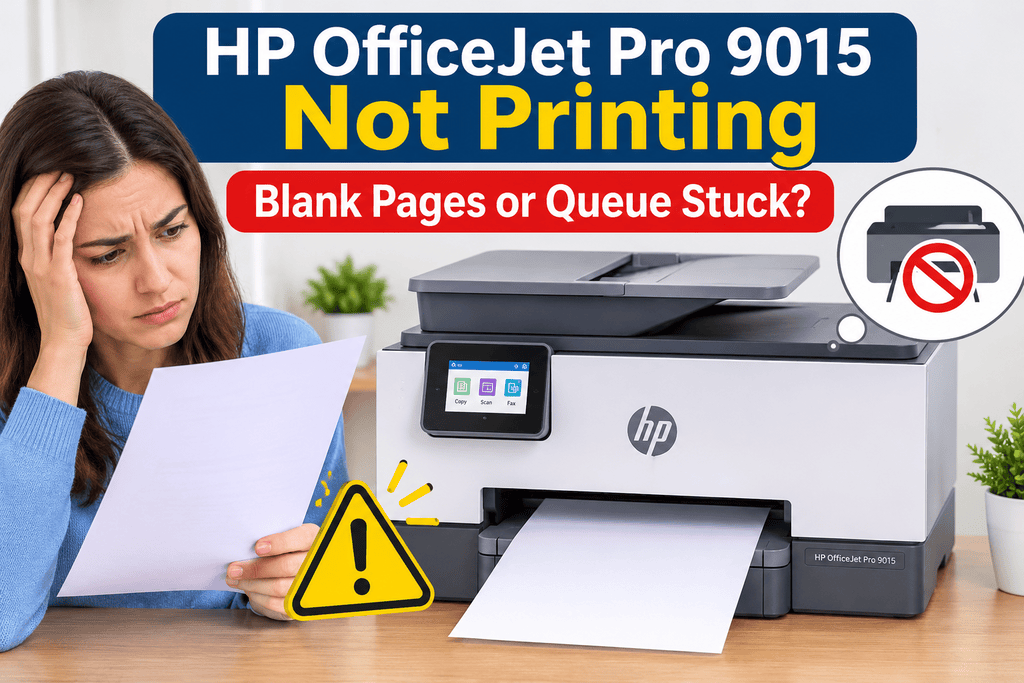
If your HP OfficeJet Pro 9015 is not printing, you may see blank pages, documents waiting in the print queue, or jobs that disappear without producing a printout. These problems can occur because of low ink, clogged printhead nozzles, a connection issue, incorrect print settings, or a stuck printer queue.
The good news is that many printing problems can be resolved with a few basic checks. This guide explains how to identify the cause, clear a stuck print queue, troubleshoot blank pages, and restore normal printing without changing settings unnecessarily.
Quick Answer
If your HP OfficeJet Pro 9015 is not printing, first check the printer’s display for errors, confirm that paper and ink are available, and make sure the printer is connected to your computer or Wi-Fi network. Restart the printer and the computer, then try printing a test page. If the queue is stuck, cancel pending jobs and restart the print service if necessary. If pages come out blank, check ink levels and print quality settings, then run the printer’s built-in cleaning tool if available.
What Does This Mean?
The HP OfficeJet Pro 9015 is an all-in-one inkjet printer designed for printing, scanning, and copying. When it stops printing correctly, the underlying cause may be related to the printer itself, the computer, or the connection between them.
There are two common situations to identify.
- Blank pages: The printer feeds paper, but the printed page is empty or contains very little text.
- Stuck print queue: A document remains in the computer’s print queue, shows a pending status, or never reaches the printer.
These symptoms may have different causes, so identifying which one you have can save time. For example, a document stuck in the queue usually points toward a communication, driver, or software issue. Blank pages may indicate an ink supply, printhead, or document-format problem.
Common Causes
Several issues can prevent the HP OfficeJet Pro 9015 from printing normally.
- Low or empty ink cartridges: Insufficient ink can cause missing text, faded output, or blank pages.
- Blocked printhead nozzles: Dried ink or infrequent printing can interfere with ink flow.
- Poor Wi-Fi or USB connection: The computer may not be communicating with the printer correctly.
- Stuck print jobs: A failed document can prevent newer jobs from printing.
- Incorrect printer selection: Your computer may be sending documents to another printer or a virtual printer.
- Outdated or damaged drivers: Printer software problems can interfere with printing.
- Incorrect document settings: White text, blank pages, unusual formatting, or application-specific problems can make a document appear empty.
The table below can help you narrow down the likely cause.
| Symptoms | Possible causes |
|---|---|
| Printer feeds completely blank sheets | Ink supply, printhead, or document issue |
| Jobs remain pending | Print queue or communication problem |
| Printer shows offline | Wi-Fi, USB, or printer status issue |
| Only one application fails | Application or document settings |
| Text is faded or has missing lines | Low ink or blocked nozzles |
| Printer works from another device | Computer settings or driver issue |
Step-by-Step Solutions for HP OfficeJet Pro 9015 Not Printing
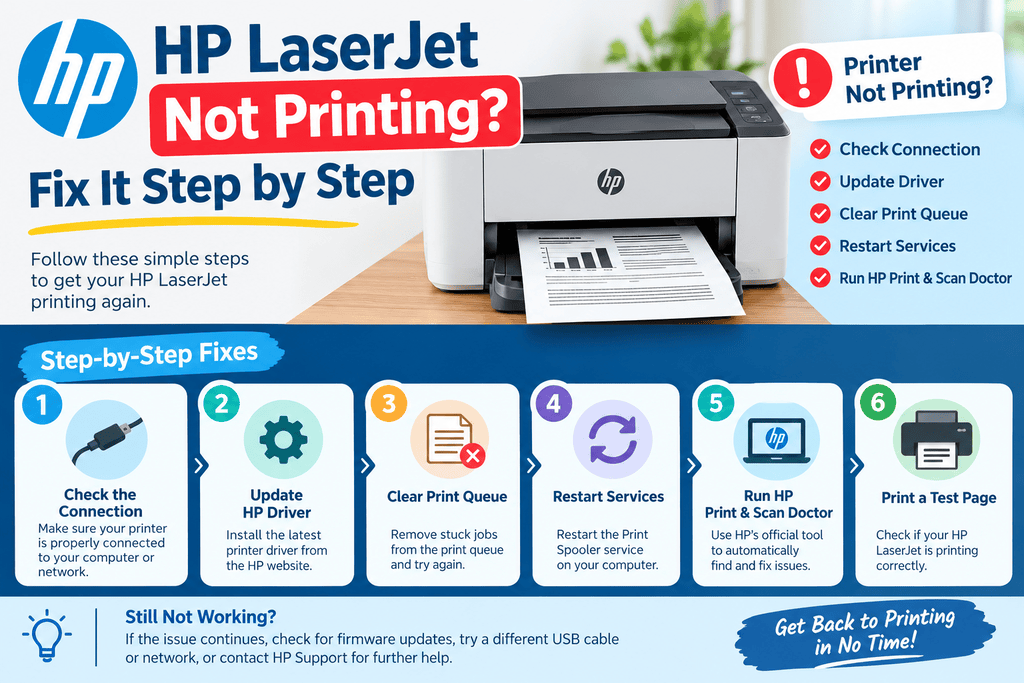
Follow these steps in order. Test the printer after each major change so you can determine which action resolves the issue.
1. Check the Printer Display and Paper Supply
Start with the printer itself.
- Make sure the HP OfficeJet Pro 9015 is powered on.
- Check its touchscreen for warnings or instructions.
- Confirm that paper is loaded correctly in the tray.
- Look for paper jams or cartridge-related messages.
- Make sure all cartridge access doors are closed.
Remove any jammed paper according to the printer’s instructions. Avoid pulling paper forcefully, as torn pieces can remain inside the printer.
Why it helps: The printer may refuse to start a job when it detects a hardware or supply problem.
2. Print a Test Page or Printer Report
Try printing a test page or a quality diagnostic report from the printer’s control panel, if available. Menu names can vary with firmware versions.
If the printer produces a good diagnostic page, the problem may be related to your computer, driver, application, or connection.
If the report is blank or has missing colors, investigate ink levels and print quality instead.
3. Check Ink Levels and Print Quality
If the printer feeds paper but produces blank pages, check the estimated ink levels on the touchscreen or in the HP printer software.
- Confirm that the cartridges are installed correctly.
- Check for any cartridge warnings.
- If a cartridge was recently replaced, verify that its protective tape was removed before installation.
- Open the printer’s maintenance or print-quality menu.
- Run the available printhead cleaning utility if the diagnostic page indicates missing ink.
Cleaning can use ink, so avoid repeating the process unnecessarily. If several cleaning attempts do not improve output, consult the printer’s maintenance guidance or arrange an appropriate inspection.
4. Clear the Stuck Print Queue
A blocked queue can prevent documents from printing even when the printer is ready.
On Windows:
- Open Settings.
- Select Bluetooth & devices, then Printers & scanners.
- Choose HP OfficeJet Pro 9015.
- Open the print queue.
- Cancel the pending jobs, especially any job that remains stuck.
On macOS, open System Settings, select Printers & Scanners, choose the printer, and review the queued jobs.
Wait for canceled jobs to disappear before submitting a new document.
| Solution | Difficulty | Estimated time |
|---|---|---|
| Check paper and printer status | Easy | 2–5 minutes |
| Print a diagnostic page | Easy | 3–5 minutes |
| Check ink and run cleaning | Easy | 5–15 minutes |
| Clear the print queue | Easy | 3–10 minutes |
| Restart the print service | Moderate | 5–10 minutes |
| Reinstall the printer driver | Moderate | 10–20 minutes |
Times are estimates and may vary depending on your computer and printer settings.
5. Restart the Printer and Computer
If documents remain stuck or the printer is not responding, restart the devices.
- Turn off the printer using its power button.
- Wait until it has shut down completely.
- Restart your computer.
- Turn the printer back on and allow it to become ready.
- Send a simple test document.
If the printer is connected through Wi-Fi, check that the computer and printer are on the intended network. For a USB connection, check that the cable is firmly connected and try another USB port if available.
6. Confirm the Correct Printer Is Selected
Your computer may send a document to the wrong device.
Before printing, open the application’s print dialog and select HP OfficeJet Pro 9015. Check that the printer is not marked offline or paused.
If the printer is unavailable, remove any unnecessary offline or paused status through the operating system’s printer controls, where those options are available.
This step is especially useful when the printer works from one computer but not another.
7. Update or Reinstall the Printer Software
If the queue repeatedly gets stuck, check whether the installed printer software is compatible with your operating system.
- Visit HP’s official support website.
- Find the HP OfficeJet Pro 9015 software and drivers.
- Select your operating system and download the appropriate available software.
- Follow HP’s installation instructions.
If necessary, remove and add the printer again using your computer’s printer settings. Avoid downloading drivers from unknown third-party websites.
8. Test With Another Document or Device
Print a simple text document or a different file. If possible, try printing from another compatible computer or mobile device.
- If only one document fails, check its formatting or recreate the file.
- If another device prints successfully, focus on the original computer’s software and settings.
- If every device produces blank pages, focus on ink delivery and printer hardware.
This comparison helps separate a printer problem from a computer problem.
Tips to Prevent the Problem
A few regular habits can reduce future printing interruptions.
- Print occasionally if the printer is used infrequently, following the manufacturer’s recommendations.
- Keep ink cartridges installed correctly and replace them when needed.
- Use the recommended paper type and size.
- Keep the printer connected to a reliable Wi-Fi network.
- Install compatible driver and firmware updates when appropriate.
- Cancel failed print jobs instead of repeatedly sending the same document.
- Avoid switching off the printer by unplugging it during normal operation.
- Review diagnostic reports when print quality starts to decline.
Frequently Asked Questions
1. Why is my HP OfficeJet Pro 9015 printing blank pages?
Possible causes include low ink, blocked printhead nozzles, incorrectly installed cartridges, or a document with no visible content. Print a diagnostic report to help determine whether the issue is inside the printer or in the document.
2. Why is my HP OfficeJet Pro 9015 print queue stuck?
A failed print job, communication interruption, or print service problem may block the queue. Cancel pending jobs, restart the printer and computer, and submit a new test document.
3. How do I clear the HP OfficeJet Pro 9015 print queue in Windows?
Open Settings, go to Bluetooth & devices, select Printers & scanners, choose your printer, and open its queue. Cancel the pending jobs and wait for the queue to clear.
4. Why does my printer say it is printing but nothing happens?
The printer may have lost its connection, selected the wrong device, or encountered a stalled print job. Check the printer’s status, network connection, and queue before reinstalling the driver.
5. Can low ink cause completely blank pages?
Yes. Empty cartridges or problems delivering ink can result in blank output. Check ink levels and cartridge installation, then run the recommended cleaning procedure if needed.
6. Why does the HP OfficeJet Pro 9015 print from my phone but not my computer?
This often indicates a computer-specific problem, such as an incorrect printer selection, a driver issue, or a stuck queue. Check the computer’s printer settings and software first.
7. Should I clean the printhead if the pages are blank?
Printhead cleaning may help if dried ink or blocked nozzles are preventing ink from reaching the paper. Check the diagnostic report first and avoid excessive cleaning because it consumes ink.
8. Will reinstalling the printer driver delete my documents?
No. Removing printer software generally does not delete your saved documents. However, you may need to reconfigure printer preferences and reconnect the device afterward.
9. Why does the printer print blank pages from only one application?
The problem may involve the document, application settings, or print formatting. Try printing a different file or saving the original document as a PDF and printing that version.
10. When should I seek professional printer service?
Consider professional service if the printer continues producing blank pages after the recommended checks, displays a persistent hardware warning, makes unusual mechanical noises, or has a suspected internal component failure.
Final Thoughts
When the HP OfficeJet Pro 9015 not printing — blank pages or queue stuck? problem occurs, start by checking the printer’s status, paper, and ink. Use a diagnostic report to investigate blank pages, and clear pending jobs if documents are stuck in the queue. Then check the connection, printer selection, and driver software.

Leave a Reply