
When a printer suddenly stops printing, goes offline, produces poor-quality pages, or refuses to connect to a computer or Wi-Fi network, online printer technical support can help identify the source of the problem. Many printer issues are caused by simple connection, driver, paper, queue, or configuration problems rather than a serious hardware failure. A logical troubleshooting process can often narrow down the cause before more advanced assistance is needed.
Quick Answer
Online printer technical support provides remote guidance for diagnosing and resolving common printer problems. Support may involve checking printer connections, clearing stuck print jobs, reviewing driver settings, correcting paper or print-quality settings, reconnecting Wi-Fi, and testing the printer with another device. The exact procedure depends on the printer brand, model, operating system, and connection method. Start with basic checks and move to more advanced troubleshooting only when necessary.
What Does This Mean?
A printer is part of a larger printing system. The printer itself, computer, operating system, driver, application, network, and print queue all need to communicate correctly. If one part stops responding, the printer may appear offline or fail to produce the requested document.
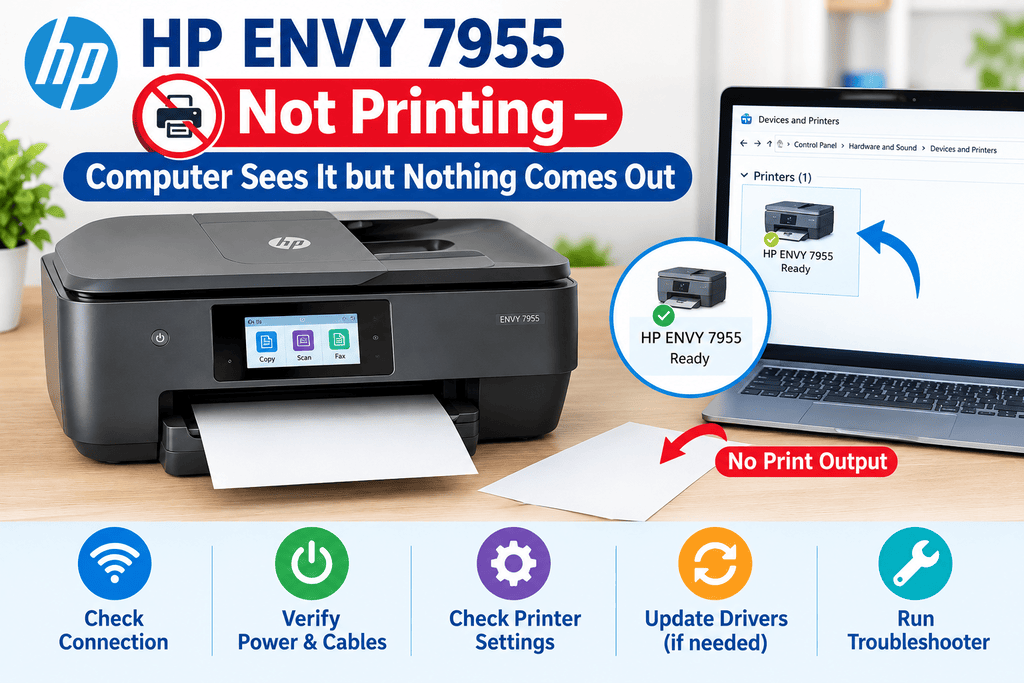
For example, a computer may show that a printer is ready even though the device has lost its network connection. In another situation, the printer may be connected correctly but have a document stuck in its print queue. A damaged driver or incorrect paper-size setting can also prevent successful printing.
This is why troubleshooting should begin by identifying where the printing process stops instead of immediately changing multiple settings.
Symptoms vs. Possible Causes
| Printer Symptom | Possible Cause |
|---|---|
| Printer shows offline | Network or USB communication problem |
| Documents remain queued | Stuck print job or spooler issue |
| Printer does not respond | Connection, driver, or device problem |
| Pages have streaks | Ink, toner, printhead, or maintenance issue |
| Wrong paper size | Incorrect document or printer settings |
| Colors look different | Color settings, media, ink, or toner |
| Printing is unusually slow | Large file, connection, or quality settings |
| Blank pages appear | Ink/toner, printhead, or print settings |
Common Causes
Printer problems can have several causes. Some of the most common include:
- Weak or interrupted network connection: Wi-Fi printers can lose communication with the router or computer.
- Incorrect printer selection: A computer may send the job to a different installed printer.
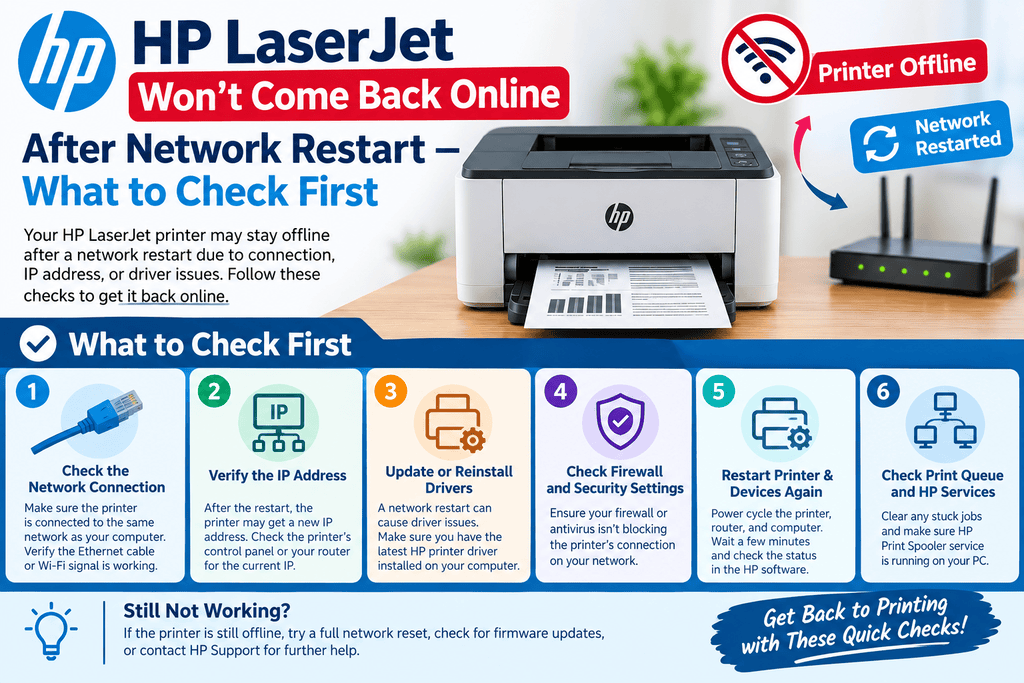
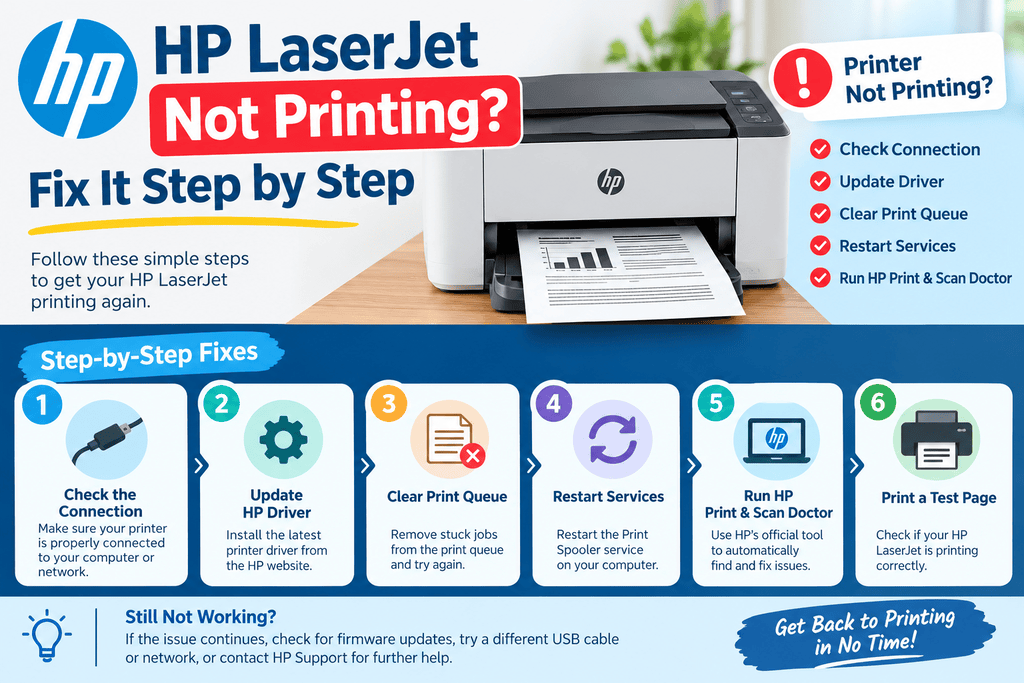
- Stuck print queue: One failed document can prevent other jobs from processing.
- Driver problems: An outdated or damaged driver may interfere with communication.
- Incorrect print settings: Paper size, orientation, scaling, or media type may be wrong.
- Low ink or toner: Consumable levels can affect printing or print quality.
- Paper feed problems: Incorrectly loaded, damaged, or unsupported media can cause feeding failures.
- Application-specific issues: A problem may occur only when printing from one program.
Step-by-Step Solutions
1. Check the Printer’s Display
Start with the printer’s control panel or display. Look for messages related to paper, ink, toner, connectivity, or maintenance. If an exact error message appears, record it before resetting anything. This information can make later troubleshooting more precise.
2. Check Power and Physical Connections
Make sure the printer is powered on and has completed its startup process. For USB printers, inspect the cable and connections. For Ethernet models, check the network cable. If the printer uses Wi-Fi, confirm that it is connected to the expected wireless network.
A physical connection check may not solve a software or driver problem, but it quickly eliminates basic communication issues.
3. Verify the Selected Printer
Open the print dialog on your computer and confirm that the intended printer is selected. If several printers are installed, documents can sometimes be sent to the wrong device.
Also check whether the printer is marked offline, paused, or unavailable in the operating system’s printer settings.
4. Clear Stuck Print Jobs
Open the printer’s queue and review pending documents. Cancel jobs that are frozen or no longer needed, then try printing a small test page.
A stuck queue can make a working printer appear unresponsive. If the queue continues to refill automatically, the problem may require additional operating-system or application troubleshooting.
5. Restart the Printer and Computer
Restarting both devices can clear temporary communication and processing problems. Shut down the printer using its normal procedure, restart the computer, and then allow the printer to finish initializing before sending another document.
This step is useful for temporary problems but will not repair damaged hardware or permanently incorrect configurations.
6. Review Driver and Printer Software
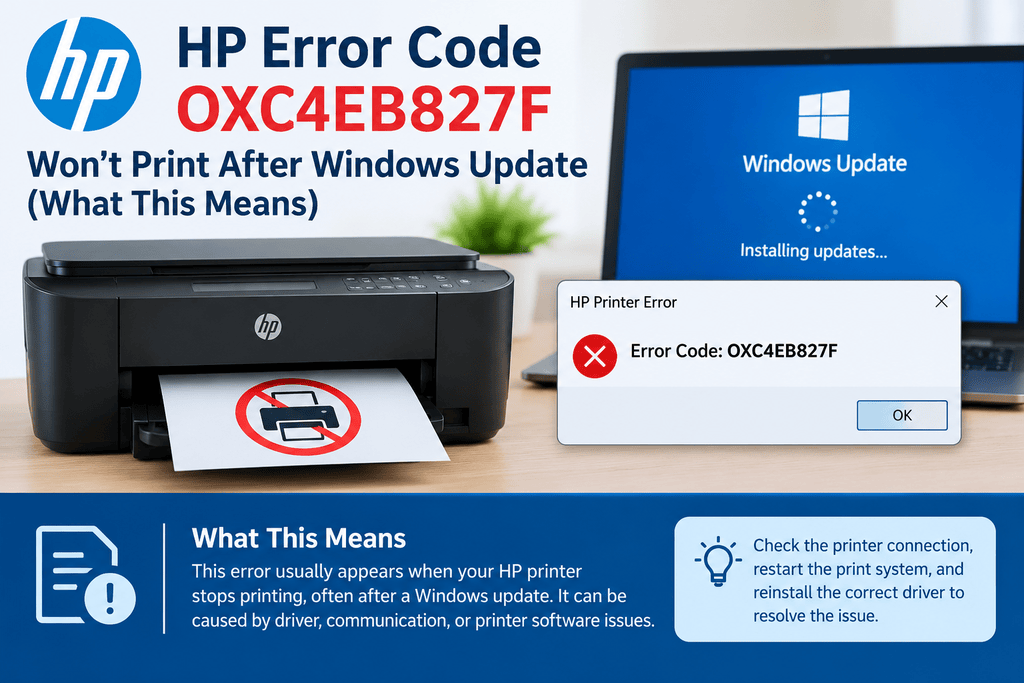
Check that the correct driver is installed for the specific printer model and operating system. If the printer was recently moved to another computer or the operating system was updated, driver compatibility is worth checking.
Avoid installing a driver intended for a different model simply because the printer names appear similar. Manufacturer-specific driver packages can differ between closely related devices.
7. Review Print Settings
Check the selected paper size, orientation, scaling, print quality, and media type. Incorrect settings can cause cropped documents, unexpected margins, slow printing, or poor output.
For specialty paper or large-format printing, matching the printer’s media settings to the material being used is particularly important.
8. Test From Another Application
If the printer works from one program but not another, the issue may be related to that particular application or document. Try a simple text document or basic image.
If a test page prints correctly but a specific PDF, spreadsheet, or graphics file does not, investigate the file or application’s print settings instead of changing the printer hardware settings.
9. Check Print Quality
For faded, streaked, or incomplete output, check ink or toner levels and use the printer’s supported maintenance tools where appropriate. Some inkjet printers provide printhead alignment or cleaning functions.
Do not repeatedly run cleaning cycles without a reason because they can consume ink. The available maintenance options vary by printer model.
10. Record What You Have Tried
If the problem remains, write down the printer model, operating system, connection type, exact symptoms, displayed messages, and troubleshooting steps already completed.
This information helps technical support understand the problem without repeating unnecessary checks.
Solution vs. Difficulty vs. Estimated Time
| Solution | Difficulty | Estimated Time |
|---|---|---|
| Check printer display | Easy | 2–5 minutes |
| Check cables/network | Easy | 5–10 minutes |
| Verify printer selection | Easy | 2–5 minutes |
| Clear print queue | Easy | 5–10 minutes |
| Restart devices | Easy | 5–10 minutes |
| Review print settings | Easy | 5–10 minutes |
| Check driver | Moderate | 10–20 minutes |
| Test another application | Easy | 5–10 minutes |
| Check print quality | Moderate | 10–25 minutes |
Tips to Prevent the Problem
Keep the printer software and drivers appropriate for your operating system, and periodically check the printer’s connection status. Use paper and other media that match the printer’s specifications, and store consumables properly.
Avoid changing several printer settings at once when troubleshooting. Make one change, test the printer, and note the result. This makes it easier to identify which setting caused or resolved the issue.
For network printers, keep the printer within a reliable wireless range when possible. If the printer frequently disconnects, checking the router, network configuration, and printer network settings may be more useful than repeatedly reinstalling the printer.
Frequently Asked Questions
1. What is online printer technical support?
It is remote guidance for diagnosing printer problems such as connection failures, offline status, print-quality issues, driver problems, and stuck print jobs.
2. Can online support fix a printer that is offline?
Online troubleshooting can help identify why a printer appears offline. Common checks include network connectivity, printer selection, cables, and operating-system settings.
3. Why is my printer connected but not printing?
The printer may have a stuck queue, incorrect printer selection, driver problem, paused status, or application-specific issue. Start by checking the print queue and printer settings.
4. Can a printer driver stop printing?
Yes. An incompatible, outdated, or damaged driver can interfere with communication between the computer and printer.
5. Why does my printer print blank pages?
Possible causes include depleted ink or toner, printhead problems, incorrect settings, or an issue with the document being printed. The appropriate checks vary by printer type and model.
6. How do I fix a printer that keeps disconnecting from Wi-Fi?
Check the printer’s wireless status, router connection, and network settings. Restarting the printer and network equipment may help with temporary connection problems.
7. Why is my printer printing slowly?
Large files, high-quality settings, network communication, processing requirements, and certain printer configurations can increase printing time.
8. Can online troubleshooting help with paper jams?
Yes. Guidance can help identify safe ways to inspect the paper path and remove accessible paper. Always follow the procedures designed for the specific printer model.
9. Should I reinstall my printer driver?
Reinstallation may help when the driver is damaged or incompatible, but it should not be the first step for every printer problem. Basic connection and queue checks should usually come first.
10. What information should I provide when requesting printer help?
Provide the printer brand and model, computer or device type, operating system, connection method, exact symptoms, and any message displayed by the printer or computer.
Final Thoughts
Online printer technical support can make printer troubleshooting more organized by helping you identify whether the problem comes from the device, connection, software, driver, settings, or print job. Start with simple checks such as power, connections, printer selection, print queues, and settings before moving to driver or maintenance procedures.
If the problem continues, document the symptoms and exact messages and follow troubleshooting instructions designed for your specific printer model. Printer menus and available features vary between brands and models, so avoid applying model-specific instructions to a different device without verification.


Leave a Reply