
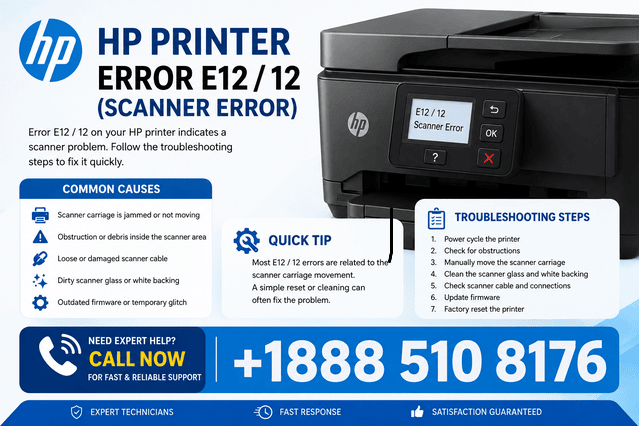
HP printer error E12 / 12 (Scanner Error) generally indicates that the printer is having trouble with its scanning system. The exact meaning and display can vary by HP printer model, so the first step is to identify the model and check the message shown on the printer. In many cases, a complete power reset, checking the scanner area, and verifying the scanner mechanism can resolve temporary faults. If the error returns after these steps, the scanner hardware or another internal component may require service.
Quick Answer
To troubleshoot HP printer error E12, turn the printer off, disconnect the power cable, wait for about 60 seconds, and reconnect it directly to a wall outlet. Check the scanner glass and carriage for obstructions, then restart the printer and test a copy or scan. If the error remains, update the printer software or firmware if an update is available for your specific model. Because HP uses different error systems across models, persistent errors should be checked against the model-specific HP documentation.
What Does This Mean?
A scanner error means the printer is detecting a problem while initializing or operating its scanning system.
On an all-in-one HP printer, the scanner normally contains several components, including:
- Scanner glass
- Scanner carriage
- Light source
- Position sensors
- Internal cables and electronics
- Scanner control circuitry
When the printer starts, it performs checks to make sure the scanner can initialize correctly. If the scanner cannot complete that process, an error may appear on the control panel.
The important point is that E12 or 12 does not necessarily have one universal meaning across every HP printer. HP printer error codes can differ between product families and models. Therefore, avoid applying a fix designed for a different HP model without checking compatibility.
Symptoms vs. Possible Causes
| Symptom | Possible Cause |
|---|---|
| E12 or 12 appears immediately after startup | Scanner initialization problem |
| Scanner makes unusual sounds | Carriage obstruction or mechanical problem |
| Copying does not work | Scanner system may not be initializing |
| Printing works but scanning does not | Scanner-specific issue |
| Error appears after moving the printer | Scanner carriage or internal connection may have been disturbed |
| Error returns after a reset | Possible persistent hardware or firmware issue |
Common Causes
Several conditions can contribute to a scanner-related error.
1. Temporary printer software fault
The printer’s internal control system can occasionally fail to initialize a component correctly. A complete power reset can clear a temporary state.
2. Scanner carriage obstruction
Dust, debris, or a foreign object around the scanner mechanism may interfere with carriage movement.
3. Scanner mechanism problem
If the scanner carriage cannot move normally, the printer may stop initialization and display an error.
4. Firmware or software issue
Outdated or corrupted printer software can sometimes cause communication or initialization problems. Whether firmware updating is appropriate depends on the printer model.
5. Internal hardware fault
If the error consistently returns after basic troubleshooting, the problem may involve the scanner electronics, sensors, motor, or an internal connection.
Step-by-Step Solutions
1. Perform a complete power reset
Start with the simplest troubleshooting procedure.
- Turn off the HP printer using its power button.
- Disconnect the power cable from the printer.
- Remove the cable from the wall outlet.
- Wait approximately 60 seconds.
- Plug the printer directly into a wall outlet.
- Turn it back on.
- Wait until the printer finishes initializing.
A power reset allows the printer’s internal electronics to shut down completely and restart.
When it may not help: If the error is caused by a mechanical or electronic hardware failure, resetting the printer will not repair the underlying component.
2. Inspect the scanner glass
Turn off the printer and inspect the scanner area.
Look for:
- Paper scraps
- Dust or dirt
- Small objects
- Adhesive residue
- Anything that could interfere with scanner movement
Clean the scanner glass with a soft, lint-free cloth. Avoid spraying cleaning liquid directly onto the printer.
Do not force the scanner carriage if it does not move freely.
3. Check for paper or foreign objects
Even when the message refers to the scanner, inspect accessible areas of the printer for scraps of paper or other objects.
Remove anything that is clearly accessible and safe to remove.
Do not disassemble the printer just to reach an internal component unless you have the appropriate technical knowledge and the procedure is specifically supported for your model.
4. Test the copy function
After restarting the printer, place a simple document on the scanner glass and try making a copy.
This test can help determine whether the scanner is functioning.
- If copying works normally, the original problem may have been temporary.
- If the same scanner error appears during copying, the scanner system itself may still be experiencing a problem.
5. Check HP software and firmware
If the printer starts normally but scanning fails from a computer, check whether the appropriate HP printer software and drivers are installed.
For firmware updates, use the instructions specifically provided for your printer model. Firmware procedures and available updates vary between HP product families.
Avoid installing firmware intended for another model.
6. Test scanning from another supported device
If your printer connects to a computer or mobile device, try scanning through another supported method.
For example, if scanning fails through your computer but copying works directly from the printer, the issue may be related to the computer-side software or connection rather than the scanner hardware.
If the printer displays E12/12 before scanning can even begin, however, the problem is more likely to be within the printer’s own scanner initialization process.
7. Check the exact model-specific documentation
Find the complete model number printed on the printer. Then look up the error message in the documentation for that exact model.
This is important because HP error codes and troubleshooting procedures can vary by printer series.
Solution vs. Difficulty vs. Estimated Time
| Solution | Difficulty | Estimated Time |
|---|---|---|
| Power reset | Easy | 2–5 minutes |
| Inspect scanner glass | Easy | 2–5 minutes |
| Check accessible paper/debris | Easy | 5–10 minutes |
| Test copying | Easy | 2–5 minutes |
| Check software/driver | Easy–Moderate | 10–20 minutes |
| Check model-specific firmware | Moderate | 10–30 minutes |
| Professional hardware diagnosis | Advanced | Varies |
Tips to Prevent the Problem
Regular maintenance can reduce scanner and printer problems.
- Keep the scanner glass clean.
- Use a soft, lint-free cloth for cleaning.
- Keep paper and other objects away from moving printer components.
- Do not force the scanner carriage.
- Avoid moving the printer while it is operating.
- Use the correct software and drivers for your exact model.
- Follow HP’s recommended firmware-update procedure.
- Keep the printer in a clean, dry location.
- Remove paper carefully when clearing a jam.
If the printer repeatedly displays the same scanner error after restarting, avoid repeatedly cycling the power. Repeated resets are unlikely to resolve a persistent mechanical or electronic fault.
Frequently Asked Questions
1. What is HP printer error E12 / 12?
It is a scanner-related error reported by certain HP printer models. The precise meaning can vary, so the printer’s exact model should be checked before applying model-specific troubleshooting.
2. Can restarting an HP printer fix E12?
It can resolve a temporary initialization problem. Turn the printer off, disconnect its power, wait about 60 seconds, reconnect it, and restart it.
3. Why does my HP printer show a scanner error but still print?
Printing and scanning use different hardware systems. The printing portion can continue functioning even when the scanner cannot initialize correctly.
4. Should I clean the scanner glass?
Yes. Cleaning the glass is a safe maintenance step and can remove dust or debris. However, dirty glass alone may not cause every scanner error.
5. Can a paper jam cause a scanner error?
It can contribute to printer problems if paper or debris interferes with accessible mechanisms. Carefully inspect the printer for scraps without forcing internal components.
6. Do all HP printers use E12 for the same problem?
No. HP printer error messages can vary between models. Always verify the error against the documentation for your exact printer.
7. Why does the error return after a power reset?
A recurring error may indicate that the problem is not temporary. Mechanical components, sensors, connections, firmware, or other internal hardware may need further diagnosis.
8. Can updating the printer driver fix the problem?
If the scanner works from the printer but fails when controlled from a computer, checking the correct HP software or driver can be useful. A driver update will not normally repair a physical scanner fault.
9. Should I open the printer to repair the scanner?
Not unless you have the appropriate technical experience and the procedure is supported for your specific model. Internal components can be damaged if handled incorrectly.
10. What should I do if E12 keeps appearing?
Record the exact error message and printer model, perform the basic reset and inspection steps, and then consult the model-specific HP troubleshooting documentation or arrange qualified printer service if the error persists.
Final Thoughts
Knowing how to fix HP printer error E12 / 12 (Scanner Error) starts with identifying whether the problem is temporary, caused by an obstruction, related to software, or associated with scanner hardware. Begin with a complete power reset, inspect and clean the scanner area, and test copying. If the error continues, check the instructions for your exact HP model rather than applying a generic repair procedure. Persistent scanner errors may require qualified hardware diagnosis.


Leave a Reply