
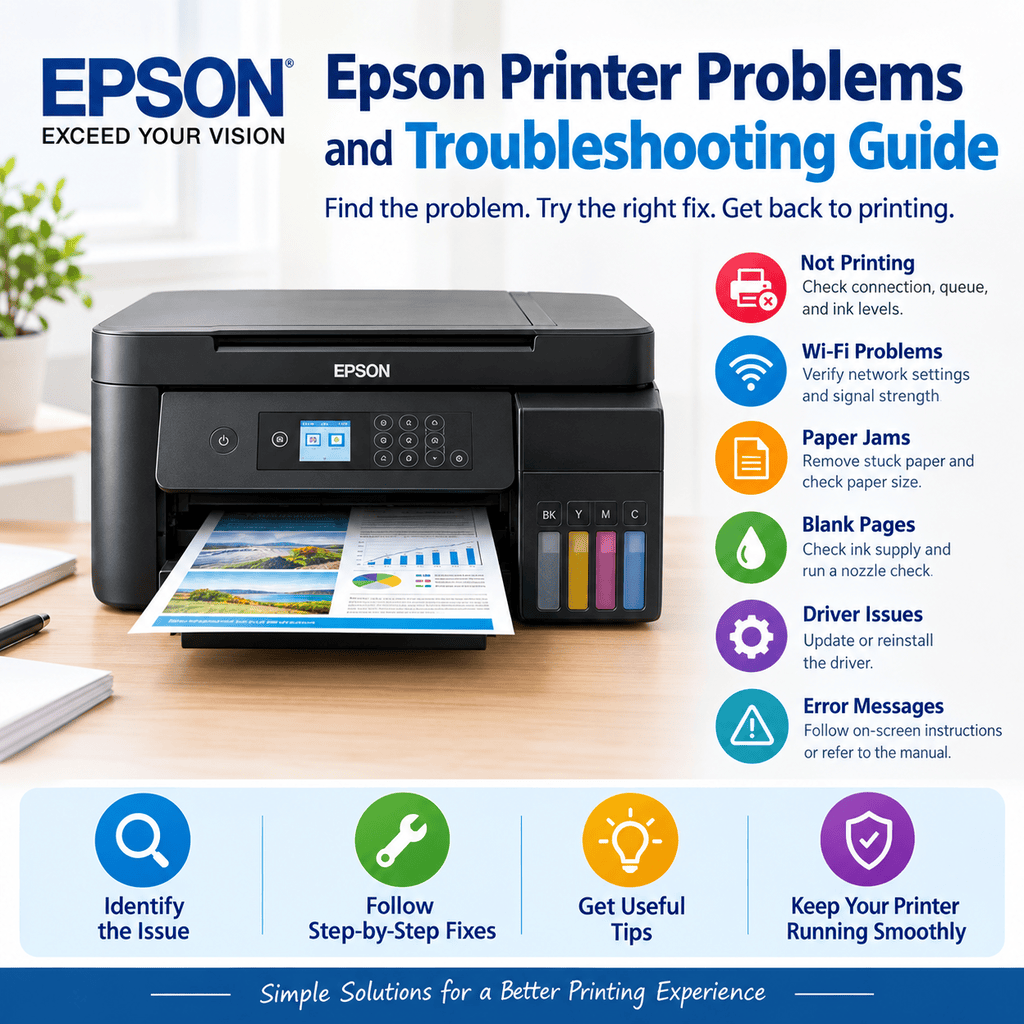
Epson printers are widely used for home, office, school, and business printing. However, problems such as a printer not printing, Wi-Fi connection failures, paper jams, poor print quality, and ink warnings can interrupt your work. This Epson Printer Problems and Troubleshooting Guide explains how to identify common printer issues and try practical solutions without unnecessary guesswork.
Most printer problems can be traced to a connection issue, incorrect print settings, outdated software, low ink, or a paper feed problem. By checking the basics first and following a step-by-step process, you can often restore normal printing. Keep in mind that instructions may vary between Epson EcoTank, WorkForce, Expression, and other printer models.
Quick Answer
If your Epson printer is not working, check that it is powered on, has paper, and displays no unresolved warning lights or messages. Confirm that your computer or phone is connected to the correct printer, then check the Wi-Fi or USB connection and clear any stuck print jobs. If the printer produces faded or blank pages, inspect the ink levels and run a nozzle check. Restart the printer and computer if needed. For persistent problems, consult the model-specific Epson user guide.
What Does This Mean?
Epson printer problems occur when the printer cannot complete a task as expected. Sometimes the device is unable to receive a print command. In other cases, it receives the command but produces blank pages, streaks, faded text, or an error message.
The cause may be related to hardware, software, ink delivery, paper handling, or network communication. For example, a printer showing as offline may still be powered on but unable to communicate with your computer.
Understanding the symptoms helps narrow down the cause. Instead of changing several settings at once, identify the specific problem and test one solution at a time.
Common Causes of Epson Printer Problems
The following issues are among the most common reasons an Epson printer may stop working correctly:
- Wi-Fi or USB connection problems: A disconnected cable, changed network password, or unstable wireless connection can prevent printing.
- Incorrect printer selection: Your computer may send documents to another printer or a virtual printer instead of your Epson device.
- Stuck print jobs: A document waiting in the print queue can prevent later jobs from processing.
- Low ink or ink delivery issues: Empty cartridges, low ink tanks, clogged nozzles, or air in an ink line on applicable models may affect print quality.
- Paper feed problems: Incorrectly loaded paper, unsuitable paper sizes, or small pieces of torn paper can cause feeding errors.
- Driver or software issues: Corrupted, incompatible, or outdated printer software may prevent the device from communicating properly.
- Incorrect print settings: Wrong paper size, print quality, or color settings can produce unexpected results.
- Hardware faults: Damaged components or persistent mechanical problems may require professional inspection.
Symptoms vs. Possible Causes
| Symptom | Possible cause |
|---|---|
| Epson printer not printing | Stuck queue, connection issue, or incorrect printer selection |
| Printer shows offline | Network interruption or offline status setting |
| Blank pages | Empty ink supply, clogged nozzles, or incorrect settings |
| Faded or streaky prints | Clogged printhead nozzles or low ink |
| Paper jam warning | Obstructed paper path or feed problem |
| Printer not connecting to Wi-Fi | Incorrect network credentials or connection settings |
| Driver installation failure | Incompatible software or installation problems |
| Slow printing | High-quality settings, large files, or communication delays |
Step-by-Step Solutions for Epson Printer Problems and Troubleshooting Guide
Follow these steps in order, stopping when the issue is resolved.
1. Check the Printer’s Power and Display
Make sure the printer is connected to a working power outlet and switched on. Check the control panel for warning lights, messages, or instructions.
If the printer appears frozen, turn it off using its power button, wait until it shuts down completely, and restart it. If it is busy printing or performing maintenance, allow that process to finish first.
Why it helps: A restart can clear temporary errors. It will not repair a damaged component or resolve every persistent warning.
2. Verify the Connection
For a USB printer, check that the cable is securely connected at both ends. If possible, try another USB port or a compatible cable.
For a wireless printer, confirm that the printer and computer or phone are connected to the intended network. If you recently changed your router or Wi-Fi password, update the printer’s network settings.
Why it helps: A reliable connection allows print jobs to reach the printer.
3. Set Epson as the Correct Printer
Open the print dialog on your computer and confirm that the intended Epson model is selected.
On Windows, open Settings > Bluetooth & devices > Printers & scanners. Select your Epson printer and review its available settings. Menu names may differ by Windows version.
On macOS, open System Settings > Printers & Scanners and check the selected device.
If the printer is marked offline, verify its connection before changing the status or reinstalling software.
4. Clear Stuck Print Jobs
Open the printer’s queue and cancel documents that are stuck or no longer needed. Wait briefly, then send a small test document.
If the queue will not clear, restart the computer and printer. On Windows, additional print spooler troubleshooting may be necessary, but advanced service changes should be made carefully.
Why it helps: Removing blocked jobs can allow new documents to print.
5. Check Paper Loading and Jams
Remove the paper from the tray and reload it neatly. Adjust the paper guides so they fit the stack without bending it. Confirm that the paper size matches the settings in the print dialog.
If a jam occurs, follow the printer’s instructions to remove paper gently. Check accessible trays and covers for torn scraps. Avoid pulling paper forcefully or touching internal parts that the manual identifies as unsafe to handle.
6. Check Ink Levels and Print Quality
If the printer produces blank, faded, or streaky pages, check the ink levels through the control panel or printer software.
For poor print quality, print a nozzle check if your model supports it. If the pattern shows missing lines, run the printhead cleaning utility according to the manufacturer’s instructions.
Avoid repeating cleaning cycles unnecessarily because they consume ink. If quality does not improve, allow the recommended waiting period before trying again. EcoTank and cartridge-based models may use different procedures.
7. Update or Reinstall the Printer Driver
If the printer is connected but cannot print, visit Epson’s official support website and locate the software for your exact model and operating system.
Install the recommended driver or utility, following the supplied instructions. If you reinstall the printer, first check whether a simpler driver update or connection fix will solve the problem.
Why it helps: Correct software enables your computer to communicate with the printer. A driver update will not fix a paper jam, empty ink tank, or mechanical fault.
8. Print a Test Page
After making changes, print a test page or a simple document.
If the test page prints correctly but a particular application does not, check that application’s print settings. If the printer’s own nozzle check is poor, focus on ink delivery and printhead maintenance rather than the computer connection.
Solution vs. Difficulty vs. Estimated Time
| Solution | Difficulty | Estimated time |
|---|---|---|
| Restart printer | Easy | 2–3 minutes |
| Check Wi-Fi or USB | Easy | 3–10 minutes |
| Clear print queue | Easy | 3–10 minutes |
| Reload paper | Easy | 2–5 minutes |
| Check ink and nozzle pattern | Easy to moderate | 5–15 minutes |
| Update printer driver | Moderate | 10–20 minutes |
| Reconfigure wireless network | Moderate | 10–20 minutes |
Times are estimates and may vary by model and operating system.
Tips to Prevent Epson Printer Problems
A few simple habits can reduce interruptions and help maintain print quality.
- Use paper that matches the printer’s specifications.
- Keep paper dry and store it away from dust and moisture.
- Use ink recommended for your specific Epson model.
- Follow the manufacturer’s guidance for printhead cleaning and other maintenance.
- Keep printer software and drivers compatible with your operating system.
- Avoid switching off the printer by unplugging it during normal operation.
- Check the print queue before sending large batches of documents.
- Keep the printer on a stable surface with enough space for ventilation and paper handling.
- Follow the model’s instructions for extended periods of inactivity.
Regular maintenance is useful, but avoid unnecessary cleaning cycles or dismantling the printer to fix routine issues.
Frequently Asked Questions
1. Why is my Epson printer not printing?
Check the printer’s power, connection, selected device, and print queue. If it receives the job but produces blank pages, inspect the ink supply and nozzle pattern.
2. How do I fix an Epson printer that shows offline?
Confirm that the printer is powered on and connected to the same intended network as your computer. Check the printer status in your operating system and restart the devices if necessary.
3. Why is my Epson printer printing blank pages?
Possible causes include empty ink supplies, clogged nozzles, incorrect settings, or an ink delivery problem. Check ink levels and run a nozzle check if supported.
4. How can I fix faded or streaky Epson prints?
Inspect the ink levels and print a nozzle check. If the pattern shows missing lines, use the built-in printhead cleaning utility according to the model’s instructions.
5. Why won’t my Epson printer connect to Wi-Fi?
Check the network name and password, confirm that the printer supports the network configuration, and follow its wireless setup instructions. Router settings or signal problems may also affect the connection.
6. What should I do if my Epson printer keeps jamming?
Reload the paper, adjust the guides, and inspect accessible areas for obstructions. If jams continue with suitable paper, consult the manual for model-specific checks.
7. Do I need to reinstall my Epson printer driver?
Not always. First check the connection, printer selection, and queue. Reinstalling or updating the driver may help when software is damaged or incompatible.
8. Why is my Epson printer printing slowly?
High-quality print settings, large documents, wireless interference, or computer performance can slow printing. Try a smaller test document and check the print quality settings.
9. Can I troubleshoot Epson printer problems without a technician?
Many connection, paper, queue, and routine print-quality issues can be checked at home. Persistent mechanical faults, recurring errors, or internal damage may require qualified service.
10. When should I contact Epson support?
Contact Epson or an authorized service provider if the printer repeatedly displays the same error, makes unusual mechanical noises, leaks ink, or remains unusable after the recommended troubleshooting steps.
This Epson Printer Problems and Troubleshooting Guide covers common printing, connectivity, paper handling, ink, and driver issues. Start with simple checks, identify the symptom, and apply one solution at a time. Use the instructions for your exact printer model, especially when performing maintenance or clearing a jam.
If the problem continues, record the displayed error message, printer model, connection type, and steps you have already tried. This information can help Epson support or a qualified technician identify the next appropriate step without unnecessary troubleshooting.

Leave a Reply