
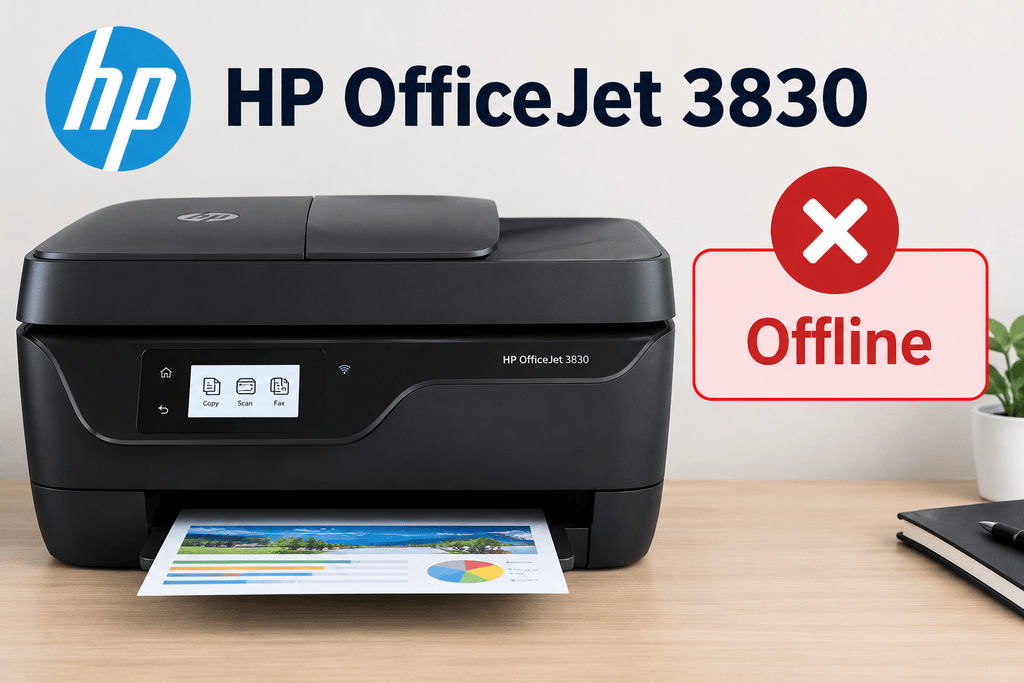
When your HP OfficeJet 3830 offline — printer won’t connect to network or shows unavailable (what to check first) becomes your main concern, start by checking the printer’s wireless connection, computer settings, and print queue. The printer may be switched on but unable to communicate with your computer, laptop, or phone. In many cases, you can fix the problem with a few basic checks before reinstalling software or arranging service.
Quick Answer
If your HP OfficeJet 3830 shows Offline or Unavailable, confirm that the printer is powered on, has no active error, and is connected to the correct Wi-Fi network. Restart the printer and router, check your computer’s printer settings, and clear any stuck print jobs. If the printer still cannot connect, use the printer’s wireless setup options and HP’s official software or troubleshooting tools. Menu names may vary slightly depending on the software and device you use.
What Does This Mean?
An offline printer is a device your computer cannot currently communicate with for printing. The HP OfficeJet 3830 may appear in your device list, but print jobs remain pending or the computer reports that the printer is unavailable.
This does not always mean the printer is broken. The problem may be related to the wireless network, a changed router password, a paused print queue, an incorrect printer selection, or an outdated driver.
It is also important to distinguish between two situations:
- The printer is disconnected from Wi-Fi: The printer itself may not be connected to your wireless network.
- The printer is connected, but the computer shows Offline: The network may be working, while the computer’s settings or print software prevent communication.
Identifying which situation applies can save time and help you choose the right fix.
Common Causes
The HP OfficeJet 3830 may show Offline or Unavailable for several reasons:
- Wi-Fi connection failure: The printer has lost its wireless connection or is connected to a different network.
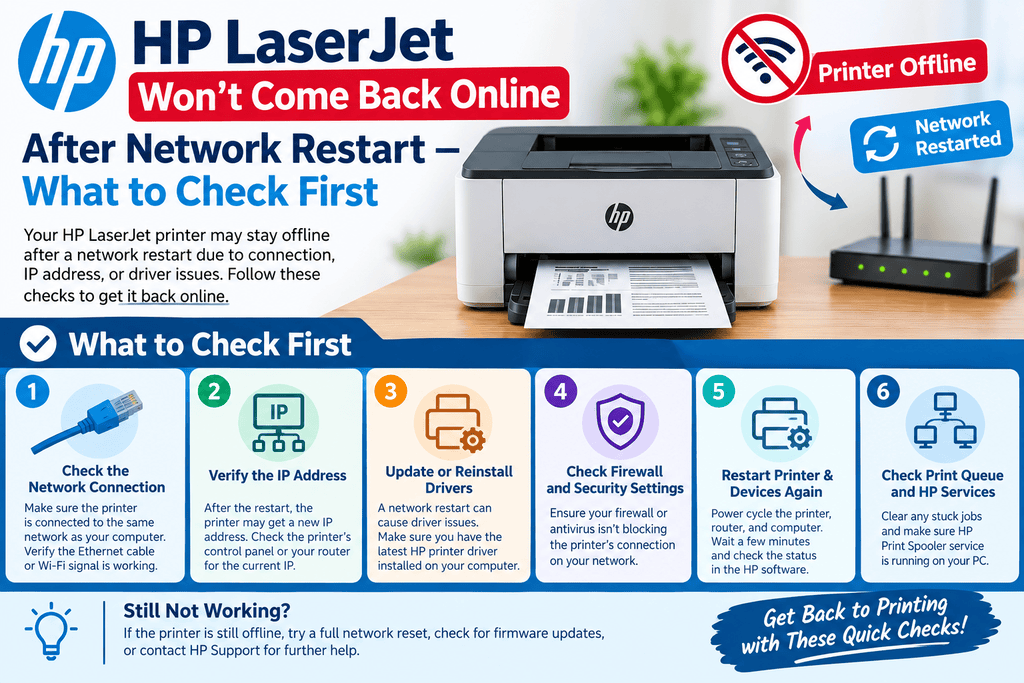
- Router changes: A new router, password, or network name may prevent the printer from reconnecting.
- Temporary communication issue: The printer, router, or computer may need a restart.
- Incorrect printer selection: Your computer may be sending documents to another printer or a duplicate printer entry.
- Stuck print jobs: A failed document may block later jobs from printing.
- Offline mode enabled: Windows may be configured to use the printer offline.
- Driver or software problems: Printer software may be outdated, damaged, or unable to communicate correctly.
- Weak wireless signal: Distance, walls, or interference may affect the connection.
Symptoms vs. Possible Causes
| Symptom | Possible cause | What to check first |
|---|---|---|
| Printer shows Offline | Computer cannot communicate with printer | Wi-Fi and printer status |
| Printer is missing from the network | Wireless setup issue | Network connection on the printer |
| Print jobs stay pending | Stuck queue or communication failure | Print queue |
| Printer works by USB but not Wi-Fi | Wireless configuration problem | Wireless network settings |
| Problem began after changing routers | Old network details remain saved | Reconnect the printer |
| Printer appears twice on the computer | Duplicate printer entries | Default printer selection |
Step-by-Step Solutions
Follow these steps in order. After each major change, try printing a test page to see whether the connection has returned.
1. Check the Printer’s Screen and Power
Make sure the HP OfficeJet 3830 is turned on and not showing a paper jam, low-supply alert that requires attention, or another blocking message. Check that the paper tray is loaded correctly and that the printer is ready.
If an error appears on the screen, resolve that issue first. A printer that is waiting for attention may not process new print jobs.
2. Confirm the Wi-Fi Connection
Check whether the printer is connected to your intended wireless network. If you recently changed your router, Wi-Fi name, or password, the printer may still be trying to use the old settings.
Use the printer’s wireless setup or network menu to reconnect when needed. The exact menu path can vary by firmware and setup method. Follow the HP OfficeJet 3830 user guide if the available options differ from these general instructions.
3. Restart the Printer and Router
Turn off the printer and close any pending print applications. Restart your wireless router according to the router manufacturer’s instructions, then wait for the network to become available. Turn the printer back on and allow it to reconnect.
This can resolve temporary network or communication problems. Avoid resetting the router to factory settings, as that can erase network configuration.
4. Make Sure Your Computer Uses the Correct Printer
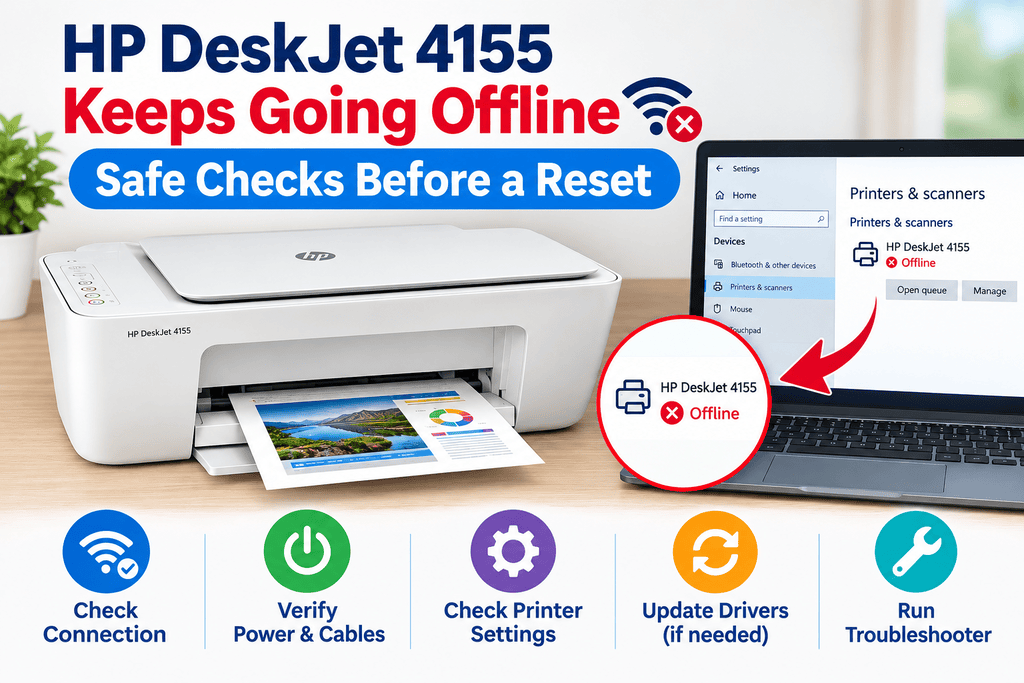
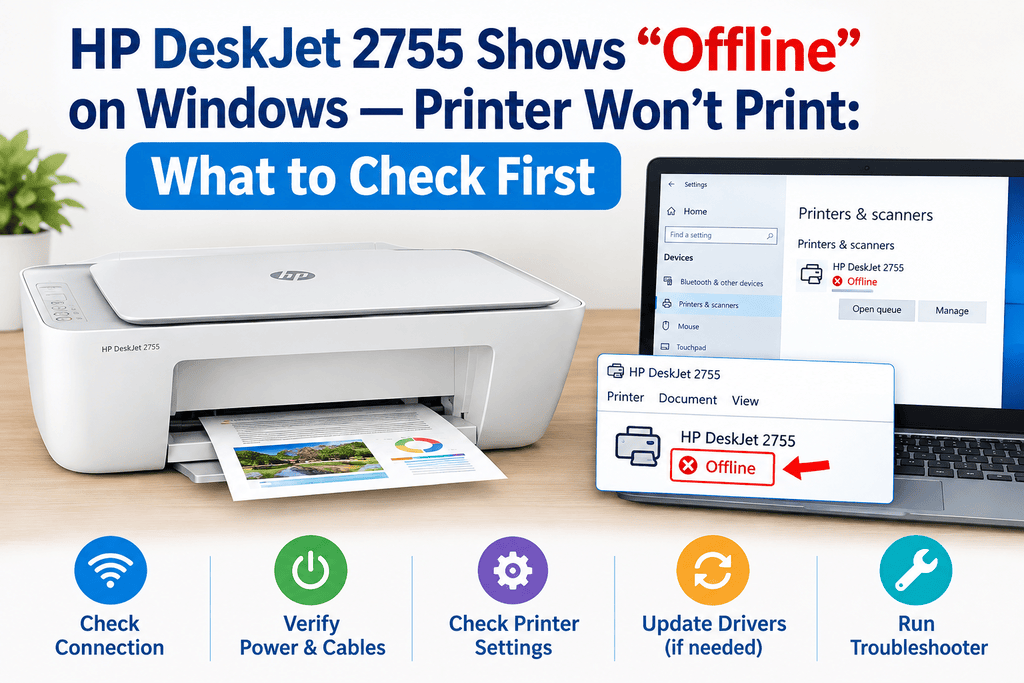
On Windows, open Settings → Bluetooth & devices → Printers & scanners. Select the HP OfficeJet 3830 and check its status. Menu labels may differ by Windows version.
If several copies of the printer appear, select the correct entry. If Windows offers an option to set the printer as default, use it if this is your main printer.
On a Mac, open System Settings → Printers & Scanners and select the appropriate printer. Confirm that you are using the intended device and that no obvious paused or error status is shown.
5. Clear Stuck Print Jobs
A document that failed earlier can prevent new documents from printing.
On Windows, open the printer’s queue and cancel jobs that are stuck. If a job will not clear, restart the computer and printer before trying again. On macOS, open the printer queue and remove failed jobs if the interface provides that option.
After clearing the queue, send one small test document instead of resubmitting several large files at once.
6. Turn Off “Use Printer Offline” if Enabled
In some Windows versions, the classic print queue includes a Printer menu with an option called Use Printer Offline. If this option is selected, turn it off.
This setting is not displayed in every Windows version or printer interface. If you cannot find it, do not change unrelated settings; continue with the connection and queue checks.
7. Use HP’s Official Troubleshooting and Software
If the printer remains unavailable, use HP’s official support resources to find the correct software, driver, and troubleshooting steps for the OfficeJet 3830. Choose your operating system and printer model carefully.
Avoid driver-download sites you do not recognize. If you recently updated your computer, reinstalling the correct HP software may help, but it should not be the first step when the printer is simply disconnected from Wi-Fi.
8. Reconnect the Printer to Wi-Fi if Necessary
If the printer cannot join the network after the earlier checks, use its supported wireless setup process to connect again. You may need your Wi-Fi name and password.
A factory reset is not usually the first choice because it can remove saved settings. Use a reset only when HP’s model-specific instructions recommend it and you understand which settings will be erased.
Solution vs. Difficulty vs. Estimated Time
| Solution | Difficulty | Estimated time |
|---|---|---|
| Check power and printer screen | Easy | 1–3 minutes |
| Confirm Wi-Fi connection | Easy | 3–5 minutes |
| Restart printer and router | Easy | 5–10 minutes |
| Check computer printer settings | Easy | 3–8 minutes |
| Clear stuck print jobs | Easy | 2–5 minutes |
| Review or reinstall HP software | Moderate | 10–20 minutes |
| Reconnect to Wi-Fi | Moderate | 5–15 minutes |
These times are estimates. Your network, operating system, and software version may affect the process.
Tips to Prevent the Problem
A few simple habits can reduce recurring offline errors:
- Keep the printer within reliable range of your wireless router.
- Use the correct Wi-Fi details after changing routers or passwords.
- Install drivers and updates from official HP resources.
- Remove failed print jobs rather than repeatedly sending the same document.
- Restart the printer if it stops communicating after long periods of inactivity.
- Keep a note of the printer model and network details for troubleshooting.
- Avoid changing multiple network or printer settings at once; test after each change.
Frequently Asked Questions
1. Why does my HP OfficeJet 3830 keep going offline?
It may be losing its Wi-Fi connection, experiencing a communication problem, or using incorrect computer settings. Check the network first, then review the print queue and printer status.
2. Why does my printer say Offline when it is turned on?
Power alone does not guarantee a working connection. The printer may be disconnected from Wi-Fi, or your computer may not be able to reach it.
3. Can a new Wi-Fi password make my printer unavailable?
Yes. If the saved network credentials no longer match your router, reconnect the printer using the updated wireless details.
4. Will restarting the printer delete my settings?
A normal power restart generally does not erase saved wireless settings. A factory reset is different and may remove them.
5. Why does the HP OfficeJet 3830 print through USB but not Wi-Fi?
This suggests that the printer can print, but its wireless connection or network configuration may be the problem. Check the Wi-Fi setup and confirm that the computer is selecting the correct printer entry.
6. Should I reinstall the printer driver?
Try basic connection checks and clear the queue first. If the problem continues or began after a software change, consult HP’s official instructions for the correct driver.
7. How do I get the printer back online in Windows?
Check the printer under Settings → Bluetooth & devices → Printers & scanners, verify that it is selected correctly, and review the queue. If your Windows interface offers Use Printer Offline, make sure it is not enabled.
8. Can a weak Wi-Fi signal cause an offline message?
Yes. A weak or unstable connection can interrupt communication. Move the printer closer to the router for testing and reduce possible sources of interference.
9. Do I need to reset my printer to fix the issue?
Usually, start with simpler steps such as restarting, reconnecting to Wi-Fi, and checking the queue. Follow HP’s model-specific reset instructions only if necessary.
10. Where can I find official HP OfficeJet 3830 support?
Visit HP Support and search for the OfficeJet 3830. Use the official resources for product-specific troubleshooting, manuals, and software.
Final Thoughts
When the HP OfficeJet 3830 offline — printer won’t connect to network or shows unavailable (what to check first) problem occurs, start with the basics: confirm the printer is ready, check its Wi-Fi connection, restart the printer and router, and inspect the computer’s printer settings and queue. These checks often help identify whether the problem is with the network or the computer.


Leave a Reply