
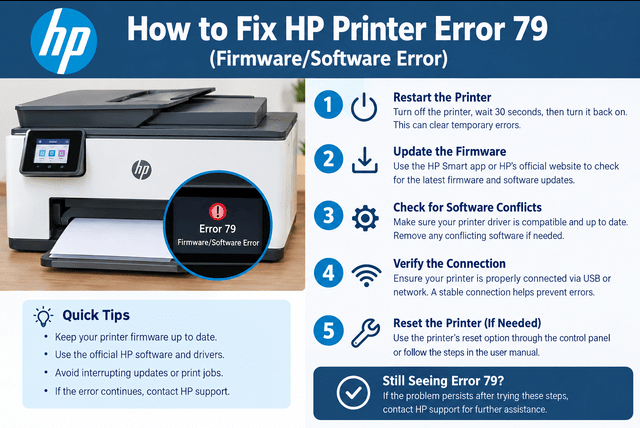
HP printer error 79 is commonly associated with a communication, firmware, or software problem that prevents the printer from processing a print request correctly. It may appear after sending a document, using a printer connected through a network, or following a software or firmware change. In many cases, restarting the printer, clearing pending print jobs, checking connected devices, and ensuring compatible printer software is installed can help. Because the exact behavior varies by HP model, troubleshooting steps should be matched to the specific printer.
Quick Answer
To troubleshoot HP printer error 79, first turn off the printer and disconnect it from power for about 60 seconds. Restart it without immediately reconnecting computers or network devices. If the error disappears, check the print queue and remove stuck jobs before reconnecting the printer. If the error returns, check the printer’s firmware, driver, network connection, and recently installed software. Persistent error 79 messages may require model-specific HP troubleshooting or professional diagnosis.
What Does This Mean?
Error 79 generally means the printer encountered a problem while processing an operation. Depending on the printer series, the problem may involve firmware, printer software, a print job, network communication, or an accessory.
Firmware is the software built into the printer that controls its internal functions. If firmware encounters an unexpected condition, the printer may stop processing jobs and display an error.
A faulty print job can also trigger the problem. For example, a document that contains unusual formatting, unsupported content, or a corrupted data stream may cause the printer to fail while processing it.
The exact meaning of HP error 79 is not identical across every HP printer. Therefore, the printer’s complete model number and the exact message displayed on its control panel are important when selecting a solution.
Common Causes
Several issues can contribute to an HP 79 error.
- Stuck print jobs: A damaged document can remain in the print queue and repeatedly trigger the error.
- Firmware problems: Outdated or problematic firmware can affect printer operation.
- Driver conflicts: An incorrect or incompatible driver may send unexpected instructions to the printer.
- Network communication: A network connection can introduce communication problems between the printer and computer.
- Recently installed software: New printer software or changes to the operating system can sometimes affect printing.
- Connected accessories: Some printer models support additional hardware that can contribute to startup or communication problems.
- Temporary internal state: A restart can sometimes clear a condition that caused the printer to stop responding.
Symptoms vs. Possible Causes
| Symptom | Possible Cause |
|---|---|
| Error 79 appears after sending a document | Problematic print job |
| Error returns when a particular document prints | Corrupted or unsupported print data |
| Printer works after restart but fails later | Temporary software or communication problem |
| Error appears after a driver change | Driver compatibility issue |
| Error occurs during network printing | Network or communication problem |
| Error remains after disconnecting the network | Printer-side software or hardware issue |
| Error started after a firmware change | Firmware-related problem |
Step-by-Step Solutions
1. Turn the printer off completely
Start with a full power cycle.
- Cancel the current print operation if possible.
- Turn off the printer using its power button.
- Disconnect the power cable from the printer.
- Disconnect the power cable from the wall outlet.
- Wait about 60 seconds.
- Reconnect the printer directly to a suitable wall outlet.
- Turn it on and allow it to finish its startup process.
A complete shutdown can clear temporary conditions in the printer’s internal memory.
When it may not help: If the same error appears every time the printer starts, the problem may require further investigation.
2. Disconnect the printer from the computer or network
If the printer starts normally after the reset, temporarily leave it disconnected from the computer or network.
Observe whether error 79 returns while the printer is idle.
If the printer remains stable until a computer or network device reconnects, the problem may be associated with a print job, driver, or communication path.
3. Clear the print queue
A stuck print job is an important thing to check.
On the computer:
- Open the printer settings.
- Select the affected HP printer.
- Open the print queue.
- Cancel pending documents.
- Wait until the queue is empty.
- Restart the computer if necessary.
- Send a small test document.
If the error appears only when one particular document is printed, avoid repeatedly resending that file. Try printing a simple document first.
4. Test with a different document
A specific file may be responsible for the problem.
Try printing:
- A short text document
- A simple PDF
- A basic image
- A printer-generated configuration or test page, if supported
If simple documents print successfully but one file repeatedly causes error 79, investigate the original document rather than assuming the printer itself has failed.
5. Check the printer driver
A driver allows the operating system to communicate with the printer.
If the driver is incorrect, damaged, or incompatible, printing may fail.
Check that the installed driver matches:
- Your exact HP printer model
- Your operating system
- Your connection method
If you recently updated the operating system or changed printer software, driver compatibility is particularly important.
When this may not help: A driver change is unlikely to resolve an internal printer hardware problem.
6. Check firmware
Firmware controls many of the printer’s internal operations. If HP provides a firmware update for your exact printer model, review the manufacturer’s instructions before installing it.
Do not install firmware intended for a different printer model.
Before updating:
- Confirm the exact printer model.
- Check the firmware version currently installed.
- Follow the manufacturer’s update procedure.
- Avoid interrupting power during a firmware update.
Firmware options and update methods vary between HP printer families.
7. Check the network connection
For network-connected printers, temporarily test the printer without the network connection if the model allows it.
If the error appears only during network printing, investigate:
- Printer IP address
- Network configuration
- Print server settings
- Computer-to-printer communication
- Recently changed router or network settings
This can help determine whether the problem is printer-side or related to the network environment.
8. Reconnect devices one at a time
If the printer works correctly when disconnected, reconnect devices individually.
For example:
- Start with the printer alone.
- Connect the network.
- Test printing.
- Connect or enable the computer.
- Test again.
If error 79 returns immediately after one particular connection or print job, that provides a useful clue about the source.
Solution vs. Difficulty vs. Estimated Time
| Solution | Difficulty | Estimated Time |
|---|---|---|
| Power cycle the printer | Easy | 2–5 minutes |
| Disconnect network/USB | Easy | 2–5 minutes |
| Clear print queue | Easy | 5–10 minutes |
| Test another document | Easy | 5 minutes |
| Check driver | Moderate | 10–20 minutes |
| Check firmware | Moderate | 10–30 minutes |
| Troubleshoot network configuration | Moderate | 15–30 minutes |
| Hardware diagnosis | Advanced | Varies |
Tips to Prevent the Problem
A few maintenance habits can reduce the chance of recurring printer software problems.
- Keep the printer driver appropriate for your exact model.
- Install firmware updates only when they are intended for your printer.
- Avoid repeatedly sending the same document if it consistently causes an error.
- Keep large print queues under control.
- Remove unused or duplicate printer installations when appropriate.
- Maintain a stable network connection for network printers.
- Record the printer’s model and firmware version when troubleshooting.
- Restart the printer after major driver or network changes.
- Avoid interrupting firmware updates once they have started.
If error 79 began immediately after a particular software, driver, or firmware change, note that timing. It can provide an important clue during further diagnosis.
Frequently Asked Questions
1. What is HP printer error 79?
HP error 79 generally indicates that the printer encountered a problem processing an operation. Depending on the model, it can involve firmware, software, print jobs, network communication, or other printer components.
2. Can restarting the printer fix error 79?
Yes, a complete power cycle can clear a temporary condition. However, a recurring error usually requires additional troubleshooting.
3. Can a stuck print job cause error 79?
A problematic print job can contribute to error 79 on some HP printer models. Clearing the print queue and testing a different document can help isolate this possibility.
4. Why does error 79 appear when I print one specific document?
The document may contain problematic formatting or data that the printer cannot process correctly. Test other documents to determine whether the issue is file-specific.
5. Should I update my HP printer firmware?
If HP provides a firmware update for your exact model, reviewing it can be appropriate. Always follow the model-specific update instructions and avoid using firmware intended for another printer.
6. Can a printer driver cause error 79?
A damaged, incompatible, or incorrect driver can contribute to printer communication problems. Checking the driver is particularly useful when the problem began after a computer or operating-system change.
7. Why does my printer work after restarting but show error 79 again?
This pattern can indicate that something connected to the printer is triggering the problem, such as a print job, computer, network connection, or software configuration.
8. Can Wi-Fi cause HP error 79?
Network communication can contribute to printer problems on network-connected models. Temporarily isolating the printer from the network can help determine whether the network is involved.
9. Is HP error 79 always a firmware problem?
No. The error should not automatically be attributed to firmware. Print jobs, drivers, network communication, and other model-specific conditions can also be involved.
10. What if error 79 does not go away?
If the error continues after clearing print jobs, checking connections, and following model-specific software and firmware guidance, the printer may need further technical diagnosis.
Final Thoughts
Knowing how to fix HP printer error 79 starts with determining whether the problem is caused by a temporary printer state, stuck print job, driver, firmware, or network communication. Begin with a complete power cycle, then clear pending print jobs and test a simple document. If the problem continues, check the driver and firmware for the exact HP model and investigate the network if applicable. A persistent error that remains after appropriate software troubleshooting may require further hardware diagnosis.


Leave a Reply